Syntax, completion, and custom schemes
Tune one language without losing the supplied Bluloco baseline.
On this page
Establish the supplied baseline#
Choose Bluloco Dark or Bluloco Midnight in Appearance → Theme and confirm its editor scheme. A manually selected scheme can keep a different language palette inside the new UI theme.
Open completion and a documentation popup, then select text in the editor. Check ordinary foreground, muted secondary text, selection foreground/background, and the current line. These states are more informative than looking at unselected source alone.
Customize one language#
Duplicate the active scheme in Editor → Color Scheme. Change the relevant language category rather than every global text attribute. For example, adjust comments when your display makes muted comments too faint, then verify strings and inactive code remain distinguishable.
Semantic highlighting from a language plugin can affect categories. Inspect the language’s scheme settings before assuming a change to a generic identifier color should recolor every symbol.
Keep fonts separate#
Set font family, size, and line spacing under Editor → Font or a deliberate scheme override. Larger text can improve small popup/source labels without changing the underlying palette. Compare at the same zoom when evaluating Dark against Midnight.
Restore the pack#
Select the bundled matching scheme to return to supplied syntax colors. Reapply the theme for surrounding UI. If an icon or popup still differs, inspect another icon/appearance provider and the IDE’s own UI options.
When reporting a color problem, include the variant, language plugin, selected scheme, UI scale, and an example of the exact selected/focused state. This identifies the attribute involved more clearly than “the dark theme is different.”
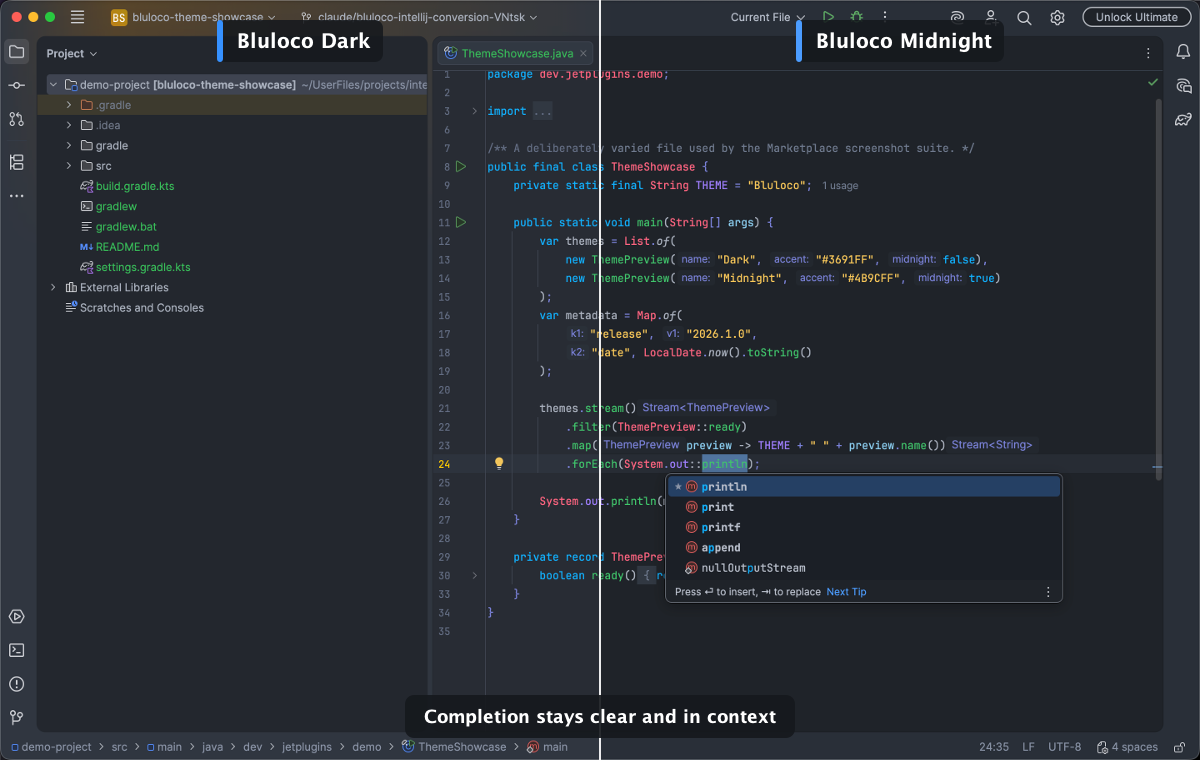
Completion stays in the context of the paired Bluloco palettes. Select the image to view it at full size.
Manual for version 2026.1.1 · Reviewed