Palettes, icons, and custom accents
Combine a Lucide palette with independently configurable icons and accent color.
Choose a palette baseline#
The release registers twenty-nine choices, including dark families, light families, and Sumi-e dark/light. Use the variant reference for exact names such as Lucide Obsidian, Lucide Gruvbox, Lucide Snow, and Lucide Sumi-e light.
Apply the theme in Appearance and inspect the matching editor scheme. The screenshots illustrate dark, warm, and light directions; they do not show every registered choice.
Configure Lucide icons#
Open the Lucide settings page. Replace IDE icons with Lucide icons controls replacement, while Colorful icons (match theme text color) controls their color treatment. Test the Project tree and toolbar after applying a change.
Another icon plugin can compete for the same resources. Compare with one provider active when a resource does not follow the setting.
Choose a custom accent#
Enable Use custom accent color and select the intended accent. Inspect focused controls, tabs, tree selection, and popups. A custom accent is a UI override, not a promise to recolor every language token or third-party panel.
Disable the override to return to the selected palette’s default accent. Keep palette, accent, and editor-scheme changes distinct while testing so you know which setting caused a difference.
Read the source#
Use the reading samples with fixed font and brightness. Check comments, strings, numbers, selection, diagnostics, and completion. Continue with workspace density and typography for the pack’s additional controls.
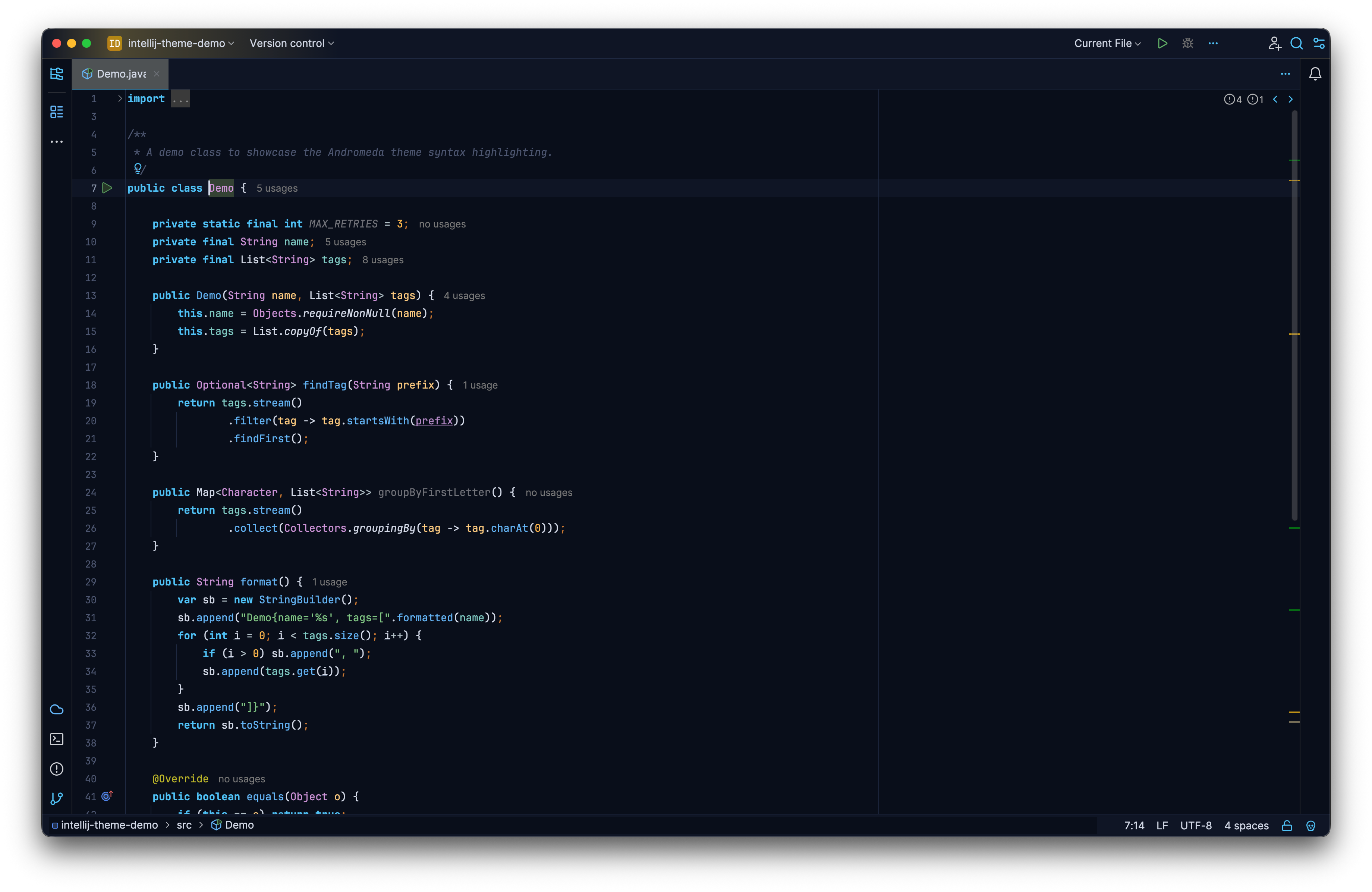
A cool Lucide dark treatment combines source and surrounding UI. Select the image to view it at full size.
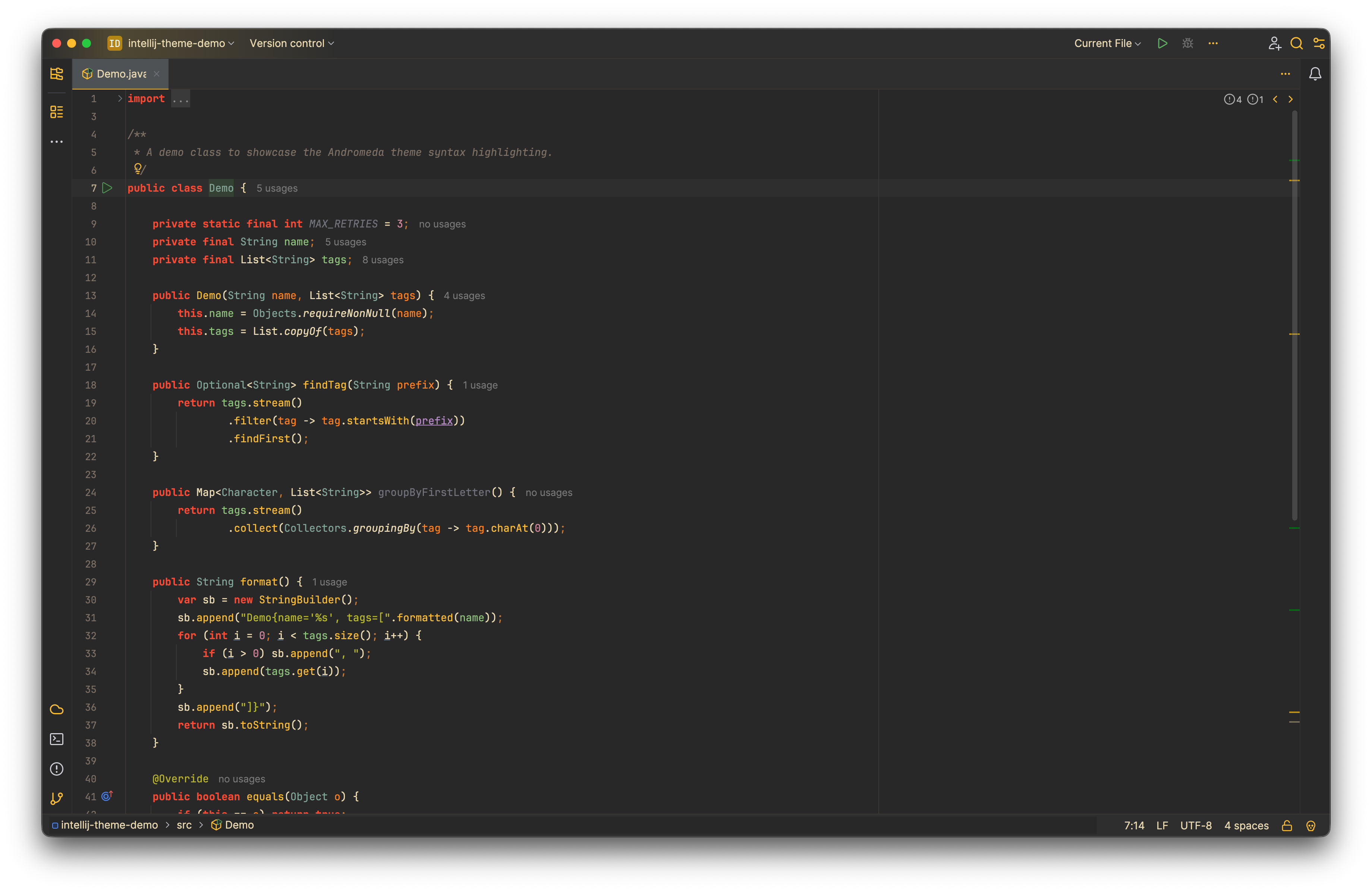
A warm Lucide palette changes syntax and workspace accents. Select the image to view it at full size.
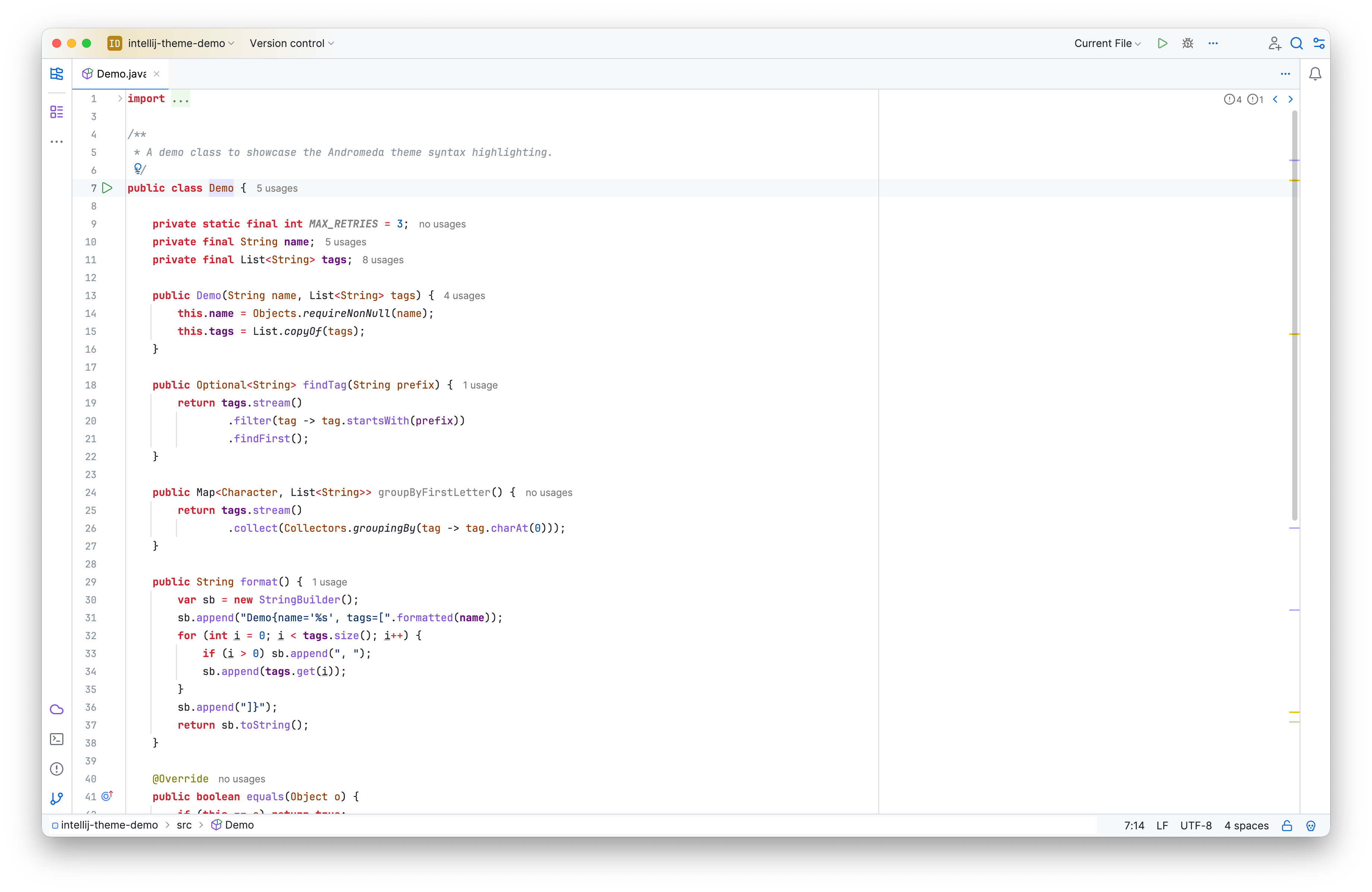
A light Lucide choice provides a contrasting workspace baseline. Select the image to view it at full size.
Manual for version 2026.1.1 · Reviewed