Matching schemes and Islands behavior
Apply the full palette and preserve deliberate font or syntax changes.
On this page
Apply the full theme first#
Select the intended Tokyo Night variant in Appearance and apply it. Then check Editor → Color Scheme. A previously selected custom scheme can keep the code pane on another palette even when the tool windows change.
Use the bundled matching scheme as the baseline. Duplicate it before changing language-specific colors. Keep the copy’s name distinct from the supplied scheme so you can tell whether you are testing the plugin palette or your own overrides.
Compare Night and Storm#
Night and Storm are separate palette choices. Keep the same source file, selection, popup, and font while switching so you can judge the background difference. If only one panel changes, inspect scheme overrides or another appearance plugin before concluding the variants are identical.
Select Islands explicitly#
Choose Tokyo Night Islands when you want the registered Islands treatment on a supported platform. Check editor/tool-window boundaries and focused controls. UI scaling, compact mode, tab placement, and platform geometry remain IDE settings rather than syntax-color attributes.
Adjust readability#
Use Editor → Font for font family, size, and line spacing, or the active scheme’s font override when deliberately using one. Check comments, inactive code, selection, and diagnostics after changing size or weight; a font change affects perceived contrast.
Restore the baseline#
Select the supplied theme and matching scheme again. Revert a custom copy independently if you want to retain other copies. When investigating an override that returns after restart, check Settings Sync and competing appearance plugins, then compare with one provider active.
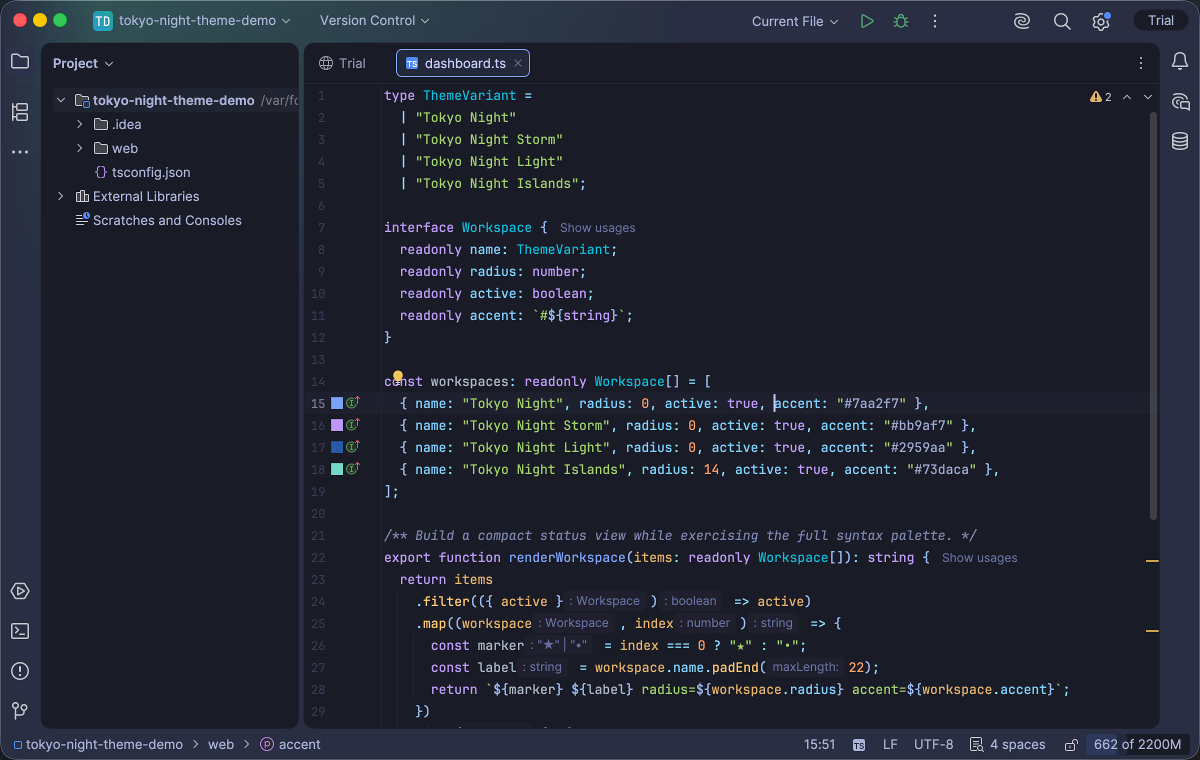
The Tokyo Night family includes multiple dark workspace treatments. Select the image to view it at full size.
Manual for version 2026.1.1 · Reviewed