Custom schemes and language colors
Adjust a Gruvbox category while keeping contrast and UI choices clear.
On this page
Keep the three choices distinct#
Your full variant name records appearance, contrast level, and optional Islands treatment. Write it down when comparing results. “Gruvbox dark” alone does not distinguish Dark Hard from Dark Soft or an Islands counterpart.
Apply the full theme first, then confirm the editor scheme. A custom scheme can override code colors while the surrounding UI follows the selected variant.
Change a specific category#
Duplicate the bundled scheme in Editor → Color Scheme. Open the affected language category or general text attribute and change one setting at a time. Comments, inactive code, and documentation have different roles and need not share one gray.
Semantic language highlighting can assign a resolved symbol to a more specific category than plain text. Inspect that language’s scheme entries if a generic identifier change does not affect the symbol you are testing.
Check selected states#
Open completion, select a line, search for a string, and inspect a diff. Warm foreground colors must remain readable on selected/search/diff backgrounds. A change that improves ordinary source can make one of those overlays harder to read.
Restore and compare#
Choose the supplied scheme and reapply the full variant for a baseline. Switch between Hard, Medium, and Soft without changing font/display settings. Set fonts under Editor → Font or a deliberate scheme override rather than expecting a contrast variant to change typography.
When filing a color report, include the full variant, selected scheme, language/plugin, and selected/focused state. This identifies the actual palette path involved.
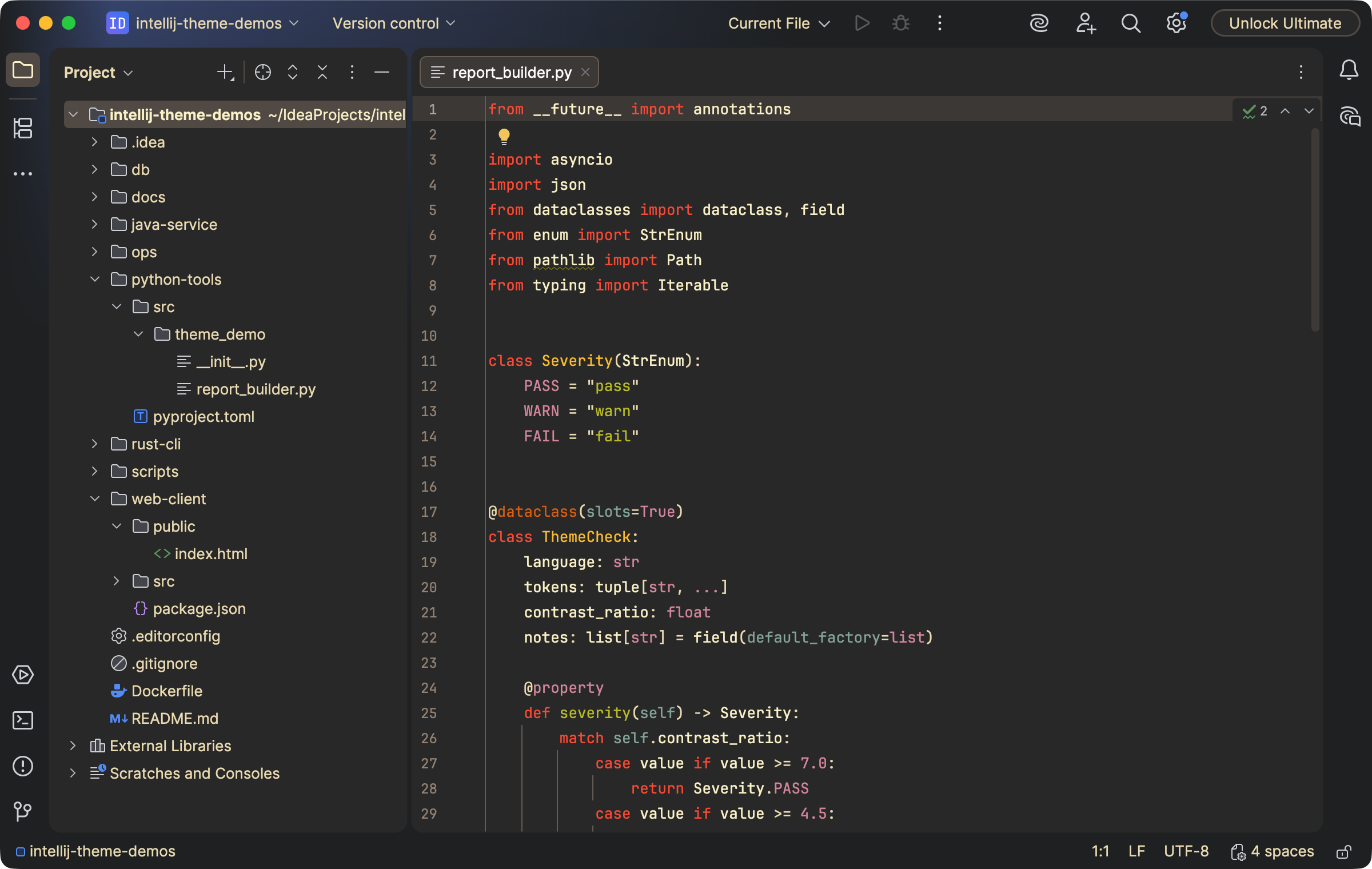
Gruvbox keeps warm syntax categories across its dark workspace choices. Select the image to view it at full size.
Manual for version 2026.1.2 · Reviewed