Panda Dark and Panda Islands
Inspect Panda syntax accents and the two workspace treatments.
Apply Panda Dark#
Select Panda Dark under Appearance → Theme. Its restrained dark surface supports colorful strings, keywords, types, and expressions. Check the matching editor scheme before comparing your source with the screenshots.
The TypeScript example exposes interfaces, readonly properties, numbers, string literals, and template expressions. Use the reading samples to repeat a compact comparison in your own IDE.
Select Panda Islands#
Panda Islands is a separate registered theme. Choose it through Appearance to inspect its supported workspace treatment. Editor and Project tool-window boundaries can change with platform geometry as well as theme color; rounded panels are not a language feature.
Keep the same source, font, and display brightness while switching. Inspect active tabs, current line, tree selection, and completion, rather than only the screenshot’s most saturated syntax.
Check a working state#
Select part of a string, search for a symbol, and open a popup. The relevant question is whether foreground text remains clear over selection/search backgrounds. Also inspect a file with diagnostics so warnings remain recognizable beside the palette.
Understand scope#
The pack provides the two registered dark choices. It does not add language completion, run configurations, or compiler diagnostics; those are supplied by the language tooling already installed. Use the customization guide to separate a scheme override from a theme application problem.
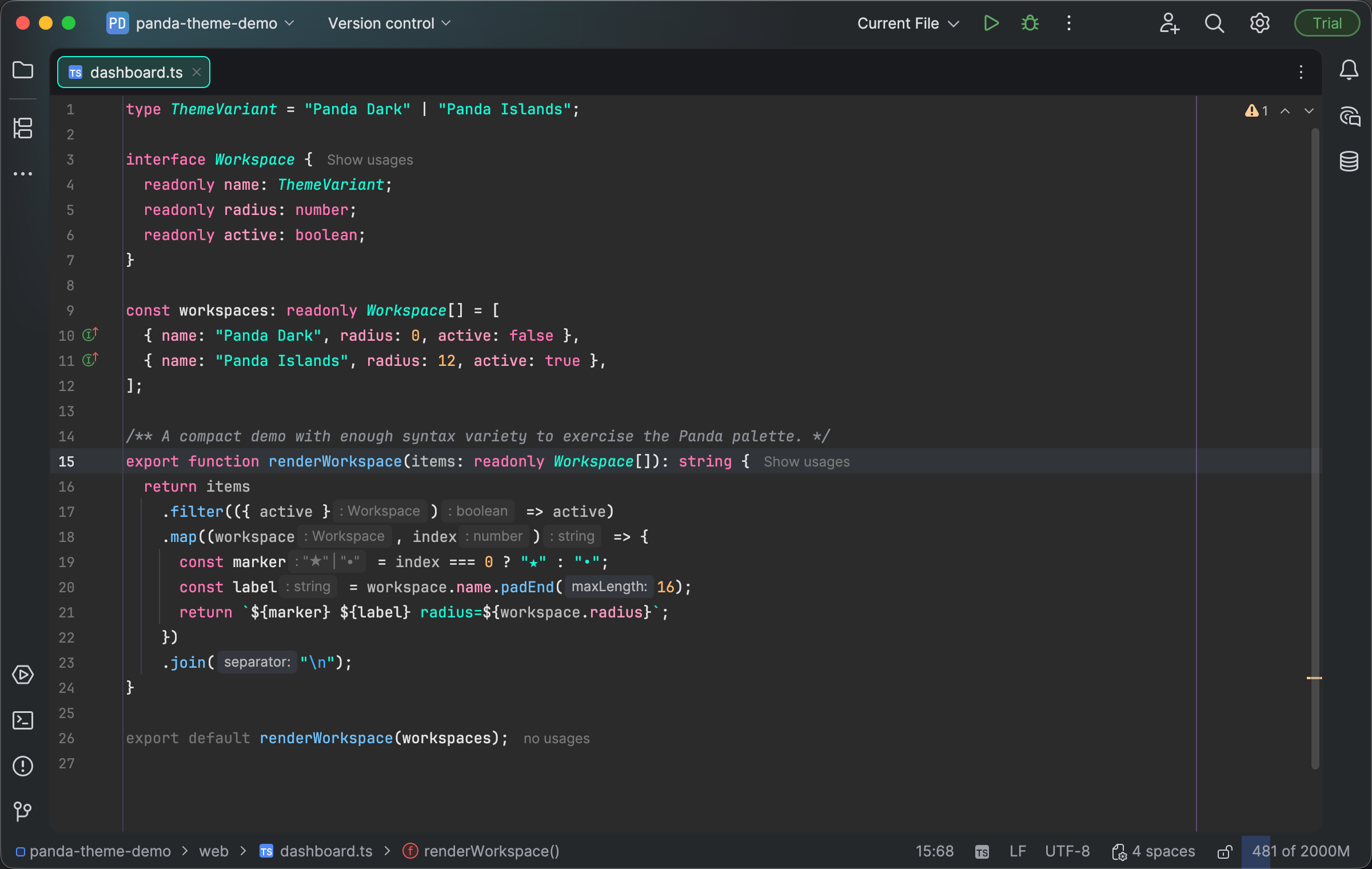
Panda syntax accents distinguish TypeScript declarations and expressions. Select the image to view it at full size.
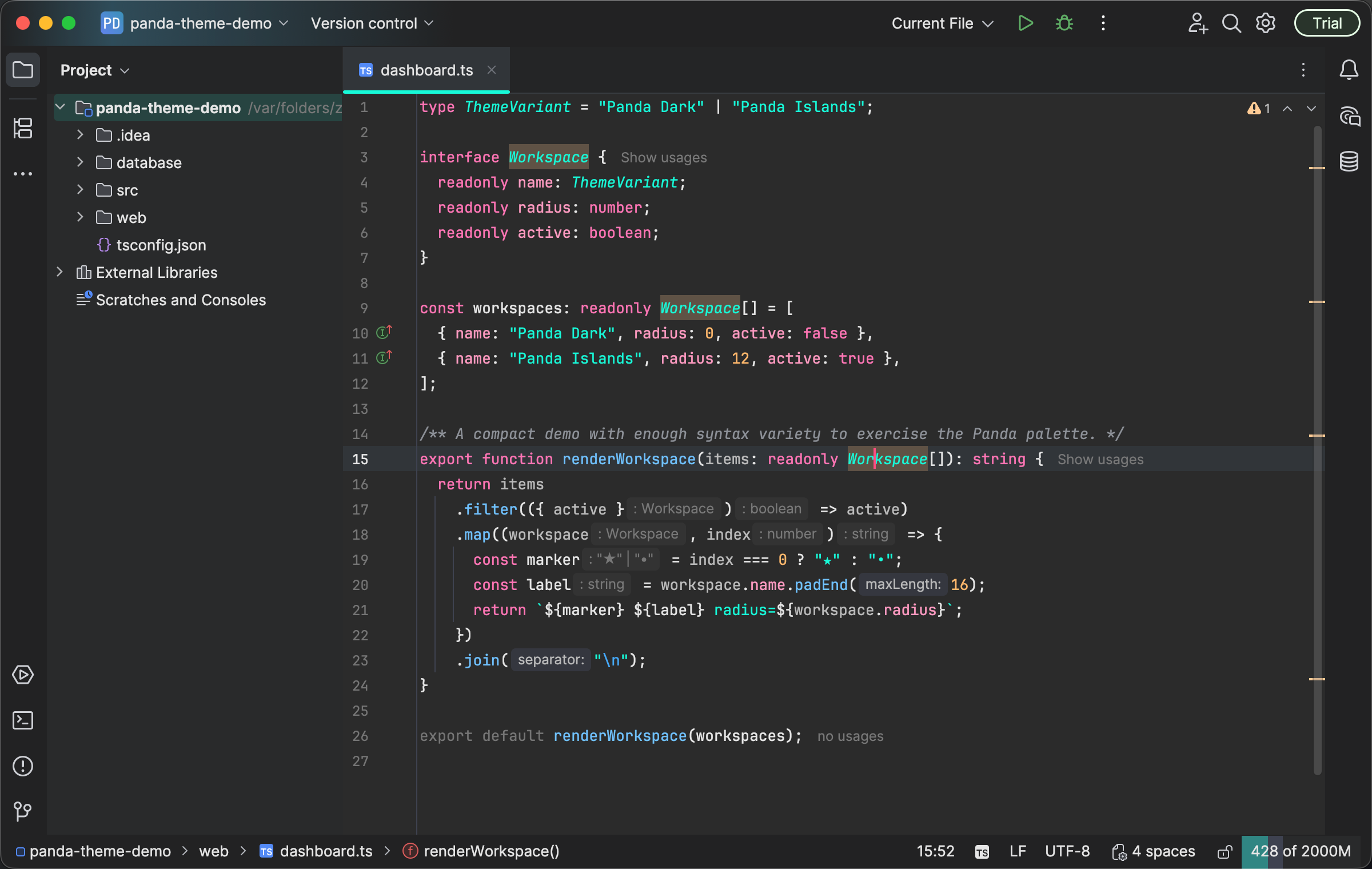
The Panda workspace includes editor tabs and Project tree treatment. Select the image to view it at full size.
Manual for version 2026.1.0 · Reviewed