Editor scheme and workspace controls
Match Panda’s UI and code palette, then adjust typography deliberately.
On this page
Match the editor to the UI#
Apply Panda Dark or Panda Islands in Appearance, then inspect Editor → Color Scheme. If a custom scheme remains selected, choose the bundled matching one to see the pack’s intended code colors.
An editor-scheme change affects code rendering. It does not independently enable the other registered theme’s geometry, tool-window surfaces, or controls.
Make a custom copy#
Duplicate the scheme before editing comments, strings, diagnostics, selections, or language-specific categories. Test the copy on representative source with completion and selection open. Preserve a clear route back to the supplied baseline.
Use Editor → Font for family, size, and line spacing unless you intentionally want a scheme-specific font override. Compare text at the same size when checking the two Panda variants.
Inspect Islands behavior#
Use the explicitly named Panda Islands entry on a compatible IDE. Platform settings such as UI scale, compact mode, and tab placement can make the result differ from a screenshot. Check those settings before changing source colors to compensate for a workspace-layout difference.
Diagnose another provider#
When icons or window surfaces do not follow the theme, identify any additional icon/appearance plugin. Compare with one provider active, reapply the theme, and confirm the selected editor scheme. Settings Sync can also restore a previous scheme choice.
Record the theme, scheme, IDE version, and affected component when reporting a problem. A screenshot showing both the source and surrounding UI helps distinguish a palette issue from a retained custom scheme.
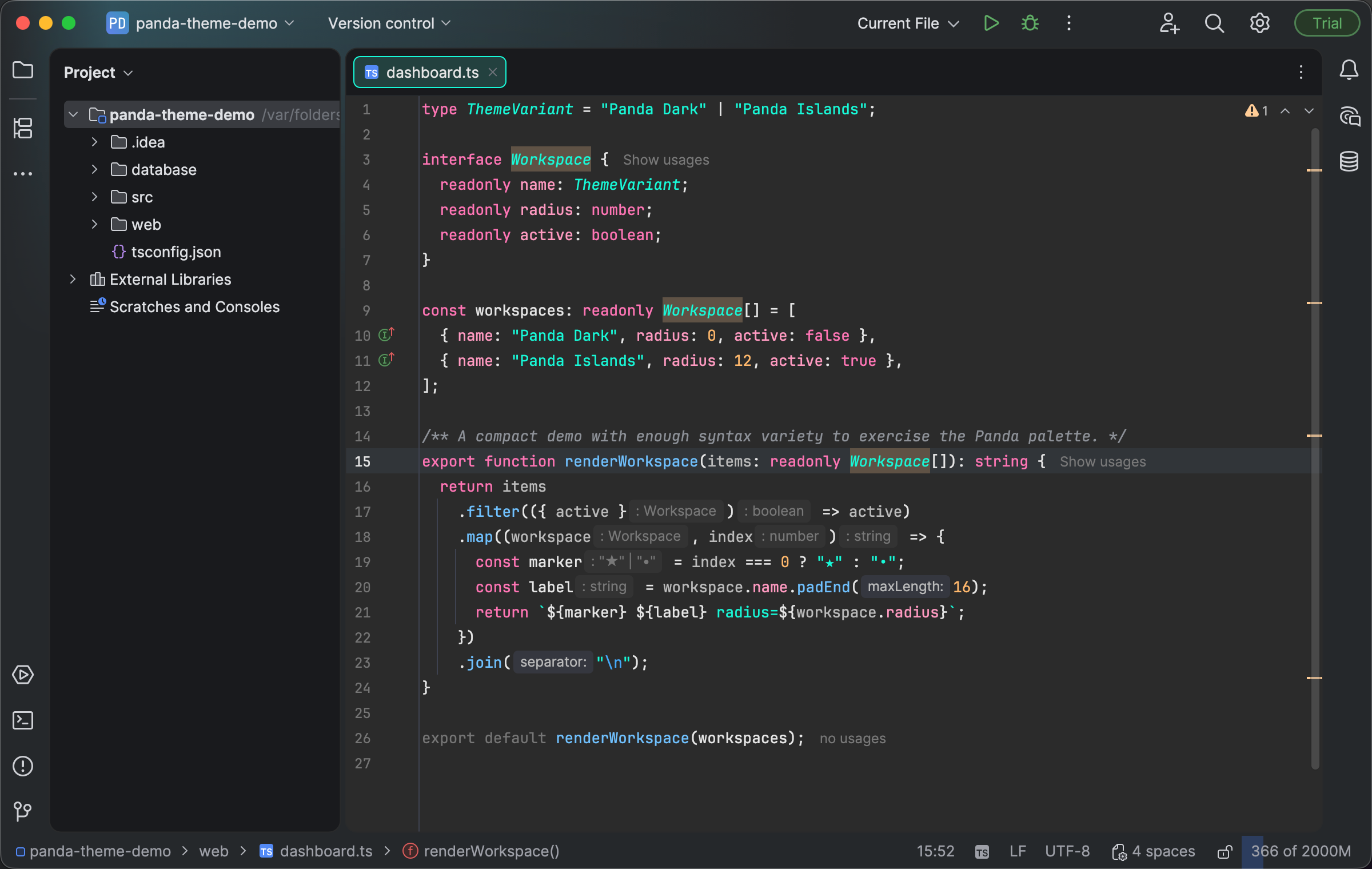
Panda styling extends to the Project tree and surrounding editor workspace. Select the image to view it at full size.
Manual for version 2026.1.0 · Reviewed