Create, run, and deploy an Astro project
Use the project wizard and review provider-specific deployment settings.
Generate a project#
Choose Astro in the New Project wizard. Set the location, Node interpreter/package manager, template, and supported theme options. A documentation starter and a minimal starter produce different project structures, so pick the one closest to your intended site.
Review the generated package.json and install dependencies. The wizard configures a project; its creation completing is separate from a successful dependency installation or development server startup.
Run locally#
Use the generated npm scripts or corresponding run configurations. A typical project exposes:
{
  "scripts": {
    "dev": "astro dev",
    "build": "astro build",
    "preview": "astro preview"
  }
}
Keep any existing project-specific scripts. Run development for editing, then build and preview when checking generated routes and production behavior. Confirm the command’s working directory in a multi-package repository.
Configure deployment#
Create an Astro Deploy run configuration and choose the supported provider. Inspect CLI status, adapter status, build-before-deploy, environment/production selection, and extra arguments. The configuration can expose provider-specific options; it still needs the provider’s actual authentication and project setup.
For a Cloudflare target, confirm the adapter required by the site’s rendering mode and the local Wrangler configuration. Installing an adapter changes project dependencies. Selecting production changes the target of a deployment, so review it before running.
Confirm the result#
Inspect the build/deploy output and open the deployed URL. Check a static page and any server-rendered route used by the application. A local preview cannot exercise every provider runtime behavior, and an accepted CLI command is not the same as a verified working route.
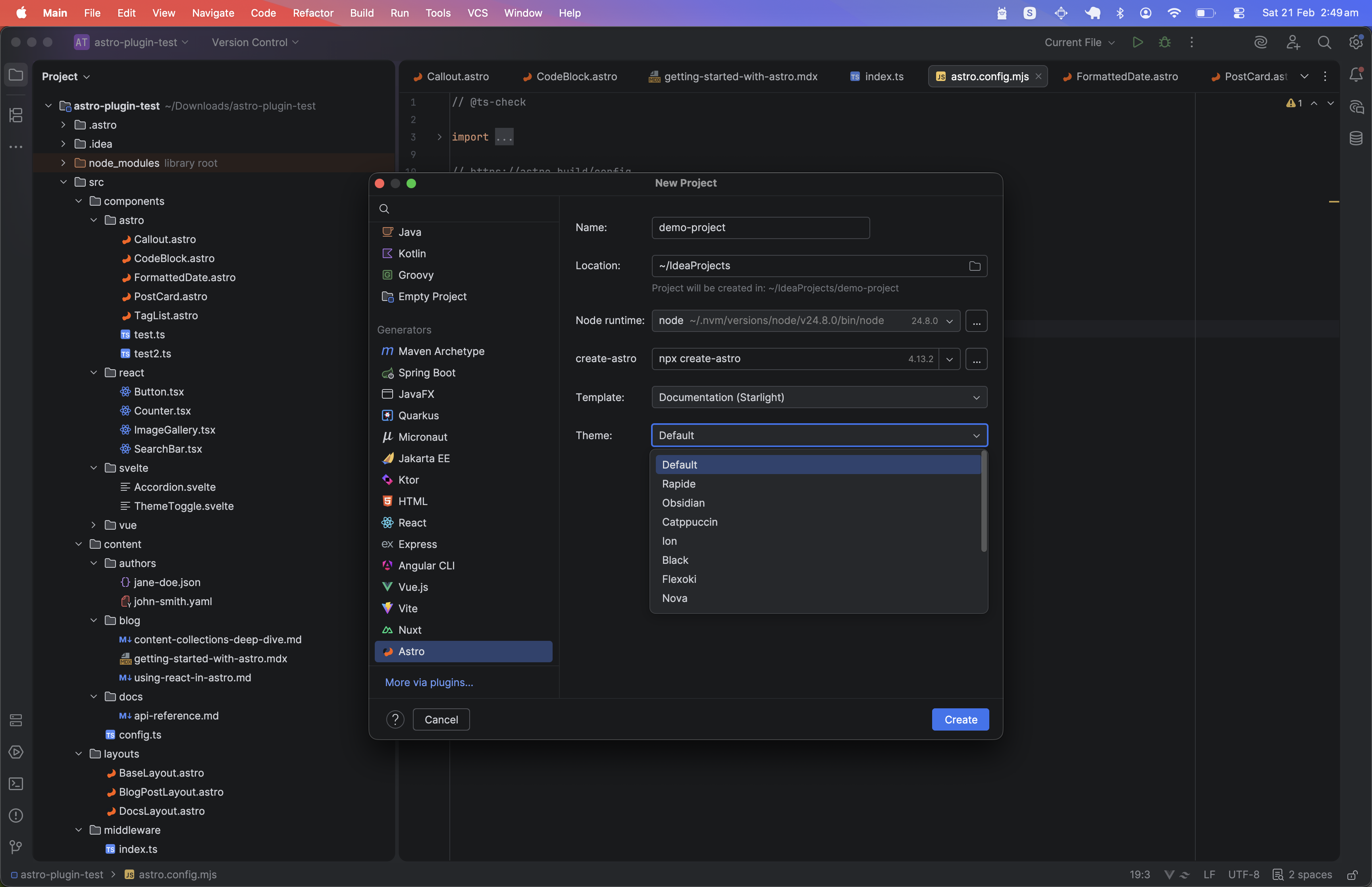
The Astro project wizard offers starter templates and supported theme choices. Select the image to view it at full size.
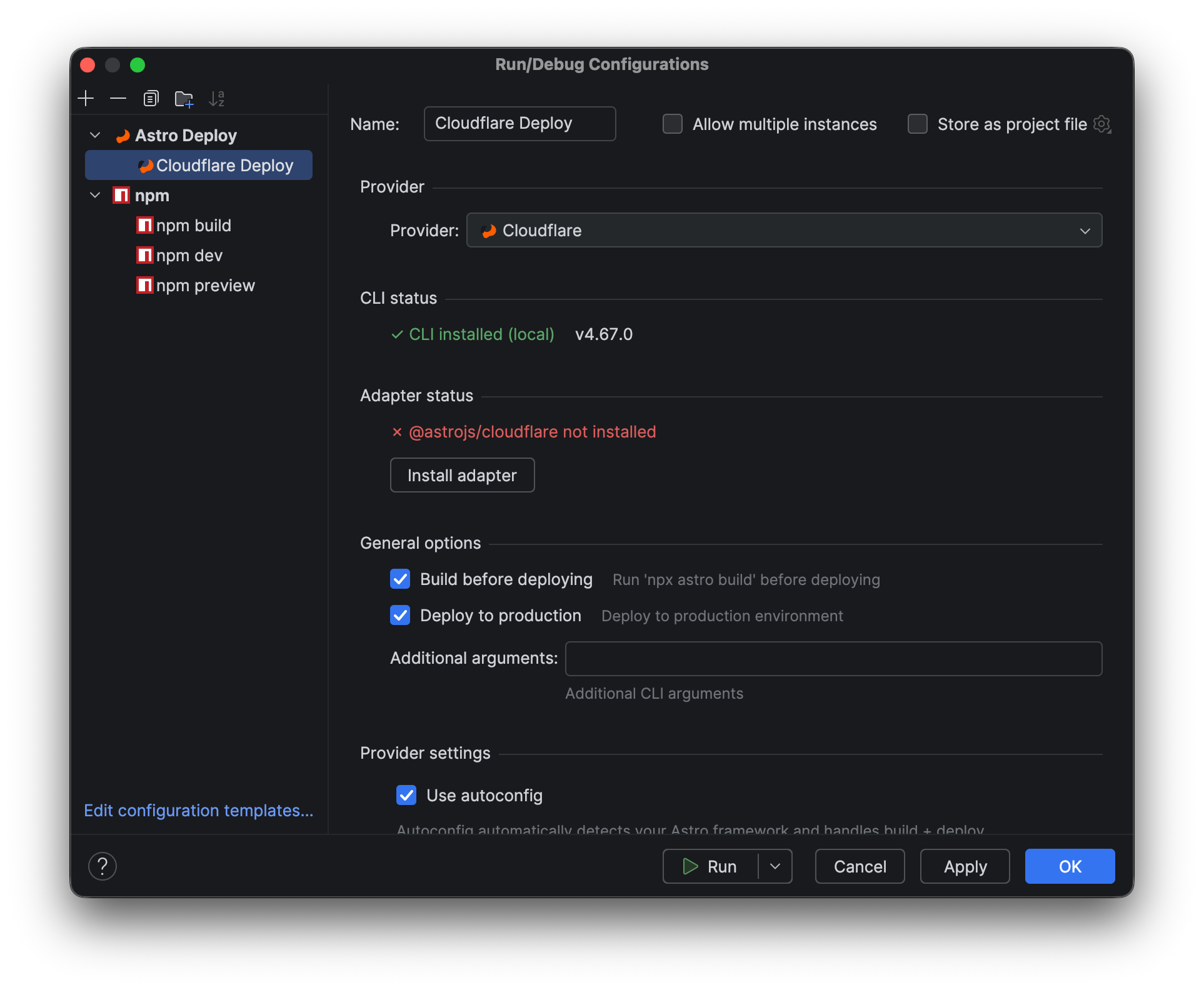
An Astro Deploy configuration shows provider, CLI, adapter, and deployment options. Select the image to view it at full size.
Manual for version 2026.1.5 · Reviewed