Overview
What Astro Pro provides, its requirements, and where to start.
On this page
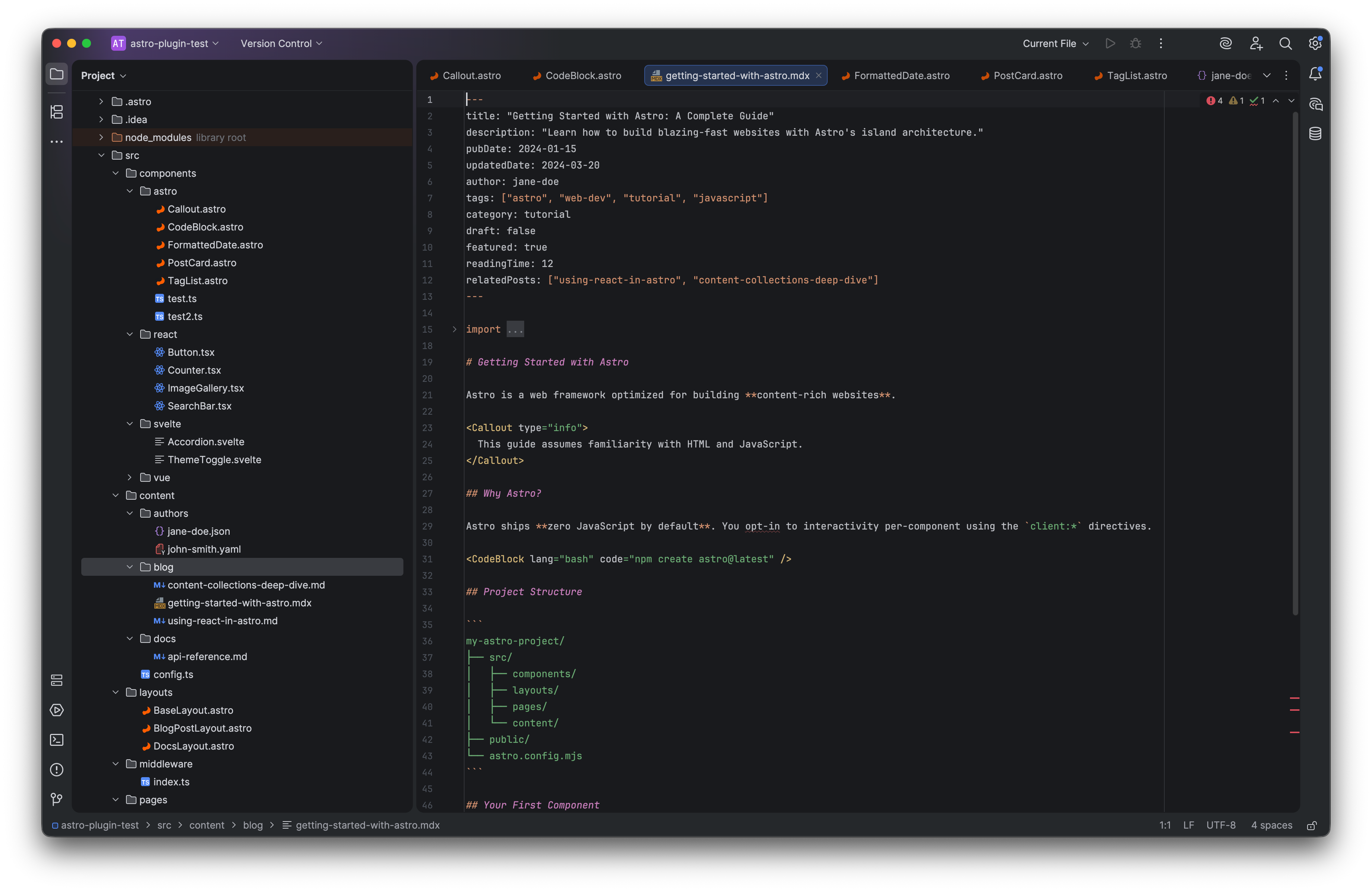
Astro Pro supports .astro editing, directives, component and import navigation, inspections, official language-server integration, project creation, Starlight tooling, and deployment actions.
Requirements#
IDE compatibility: WebStorm 2025.2+. Check the Marketplace list for other editions and their supported versions.
The documented release is 2026.1.5. Its Marketplace compatibility starts at IntelliJ Platform build 252.0. Check the Marketplace compatibility list for your IDE edition and version before installing.
Install the project’s Node.js dependencies to run Astro or its language server. LSP4IJ is optional for installation but required for language-server-backed TypeScript, diagnostics, and refactoring. Use LSP4IJ 0.21.0 or newer on IntelliJ Platform 2026.2. Native editing remains available without it.
Start here#
Install Astro Pro, then follow Editing and navigation. The configuration reference explains where to adjust the behavior for your project.
In this manual#
- Editing and navigation — Work across frontmatter, templates, and component imports.
- Projects, Starlight, and running — Create an Astro site and work with its development workflow.
Feature guides#
Editor#
- Components, props, and import resolution — Work across Astro frontmatter, templates, aliases, and component APIs.
- Content, configuration, and refactoring — Complete Astro configuration and make reviewed component changes.
Build and deploy#
- Create, run, and deploy an Astro project — Use the project wizard and review provider-specific deployment settings.
Current limitations#
Language-server features depend on LSP4IJ and project tooling. Configuration and migration assistance is version-aware and cannot make unsupported options work on older Astro versions. Deployment actions require the provider’s own setup and affect its hosted project.
Release reference#
These instructions target the published 2026.1.5 release. Check the version under Settings → Plugins → Installed if your IDE behaves differently. For setup failures, start with troubleshooting.
Manual for version 2026.1.5 · Reviewed