Preview engines, extensions, and mathematics
Choose the fast built-in renderer or the project’s Sphinx environment.
On this page
Use the built-in preview#
The built-in engine renders core RST and supported Sphinx constructs without Python. Choose the update delay and scroll-sync behavior under Settings → Tools → reStructuredText Pro. Editor/split/preview layout controls let you focus on source or output.
For mathematics, write a supported math directive:
.. math::

   E = mc^2
The built-in preview uses its supported math rendering. Check the actual Sphinx output when the project uses custom math configuration or extensions.
Enable supported extension syntax#
The settings expose supported Sphinx Design constructs such as cards, grids, tabs, and dropdowns. For example:
.. dropdown:: Deployment details

   Check the selected environment before publishing.
Enable the corresponding preview support and include the real extension in the project’s Sphinx environment. A built-in visual representation does not install a Python extension or validate its entire feature set.
Switch to Sphinx#
Choose the Sphinx engine and configure the actual sphinx-build executable. Use the environment containing the project’s extensions, not an unrelated system executable. Keep conf.py, source root, and build settings consistent with the documentation’s command-line build.
Use this path when custom directives, generated content, or project extensions must render accurately. Inspect process output for import/configuration errors rather than repeatedly adjusting the preview delay.
Diagnose a mismatch#
First compare a minimal RST section in both engines. Then add the failing directive, role, or extension block. Record which engine renders it and what the actual Sphinx build reports.
The debug preview toolbar can help inspect rendering behavior. An engine difference is a useful report when it includes the source construct, configuration, and relevant extension version.
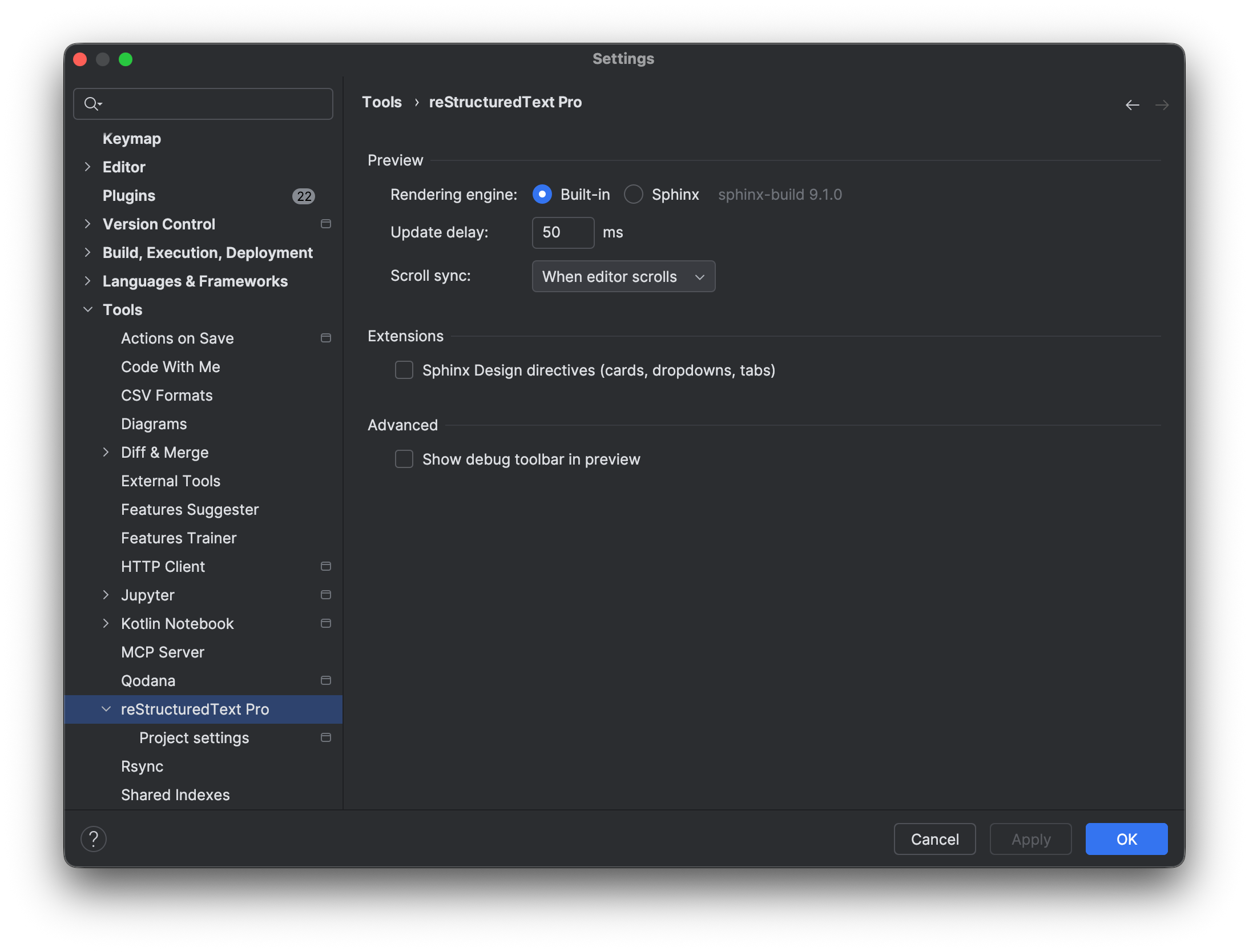
Preview settings choose built-in or Sphinx rendering and scroll synchronization. Select the image to view it at full size.
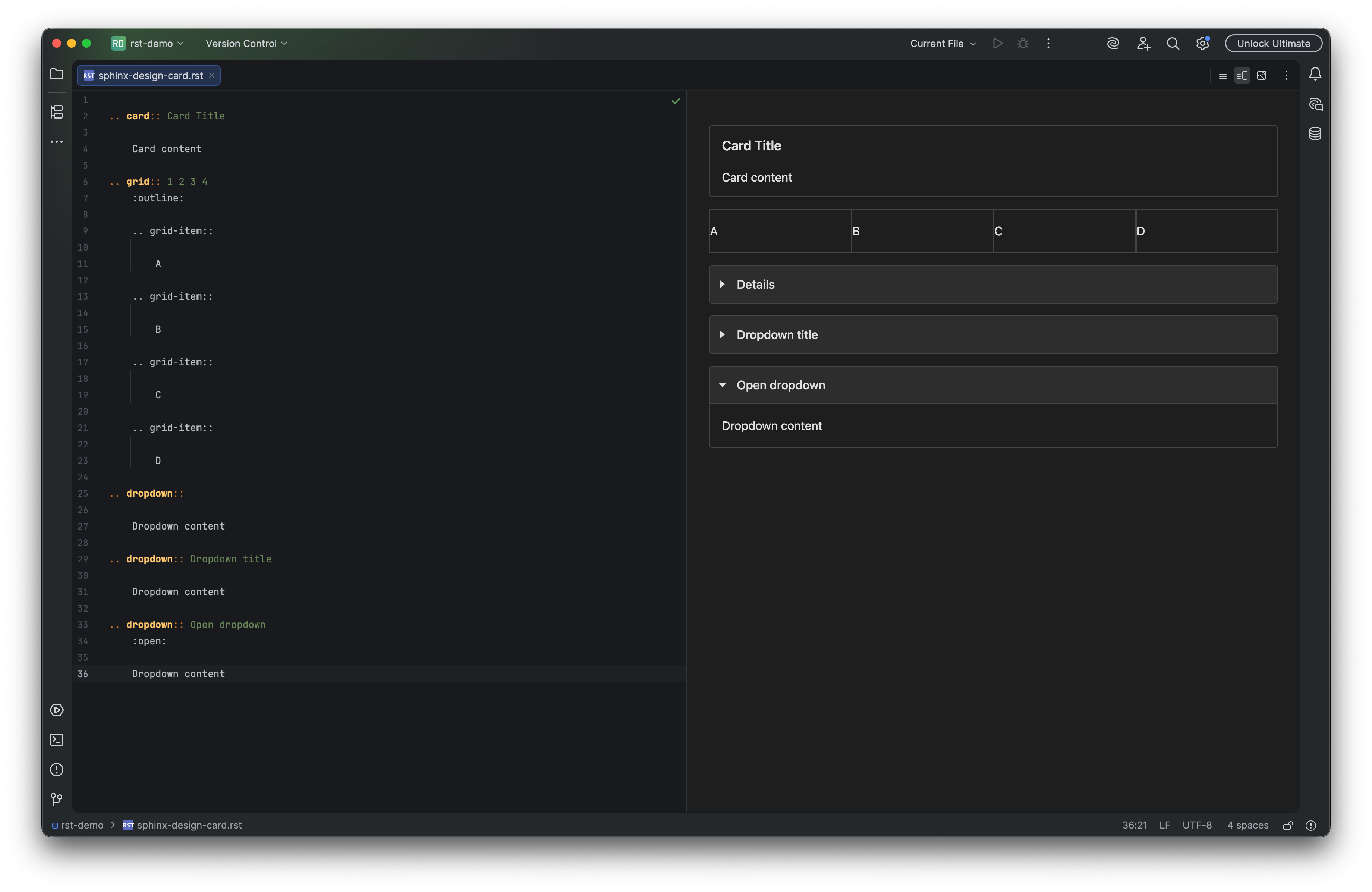
Supported design directives render cards and expandable blocks in the preview. Select the image to view it at full size.
Manual for version 2026.2.4 · Reviewed