Preview, diagrams, and extensions
Render diagrams and choose safe-mode and extension behavior.
On this page
Follow the source#
Choose editor/split/preview layout and enable scroll synchronization as needed. The preview can follow sections and included content. If it stops at an include, inspect both the resolved path and safe mode before assuming the HTML renderer failed.
The project settings include rendering, code, diagram, and extension controls. Keep the same attributes and root settings used by the manual’s build when comparing preview output.
Insert a diagram#
For enabled Mermaid support, a small diagram block is:
[mermaid]
----
flowchart LR
  Source --> Preview
  Preview --> Export
----
PlantUML uses its own block and syntax. Configure the diagram engine and appropriate light/dark themes. A diagram that works in one rendering path can need additional support in another export pipeline.
Choose Kroki deliberately#
Enabling Kroki sends supported diagram source to the configured service for rendering. Configure that endpoint for the environment you intend to use. A malformed diagram and an unreachable renderer produce different failures; test a minimal diagram before investigating a large document.
Review extensions and safe modes#
Secure mode restricts local file reads. Less restrictive modes enable additional capabilities used by includes and rendering options. Trusted JavaScript/Antora extensions participate in rendering and should be configured for the project’s actual needs.
A preview option is not a universal switch that makes every third-party extension work. Run the full documentation build when output depends on build-time extensions or Antora collection behavior.
Match the final format#
Use export workflows to confirm that diagrams, fonts, source highlighting, and included content survive in the format you will distribute.
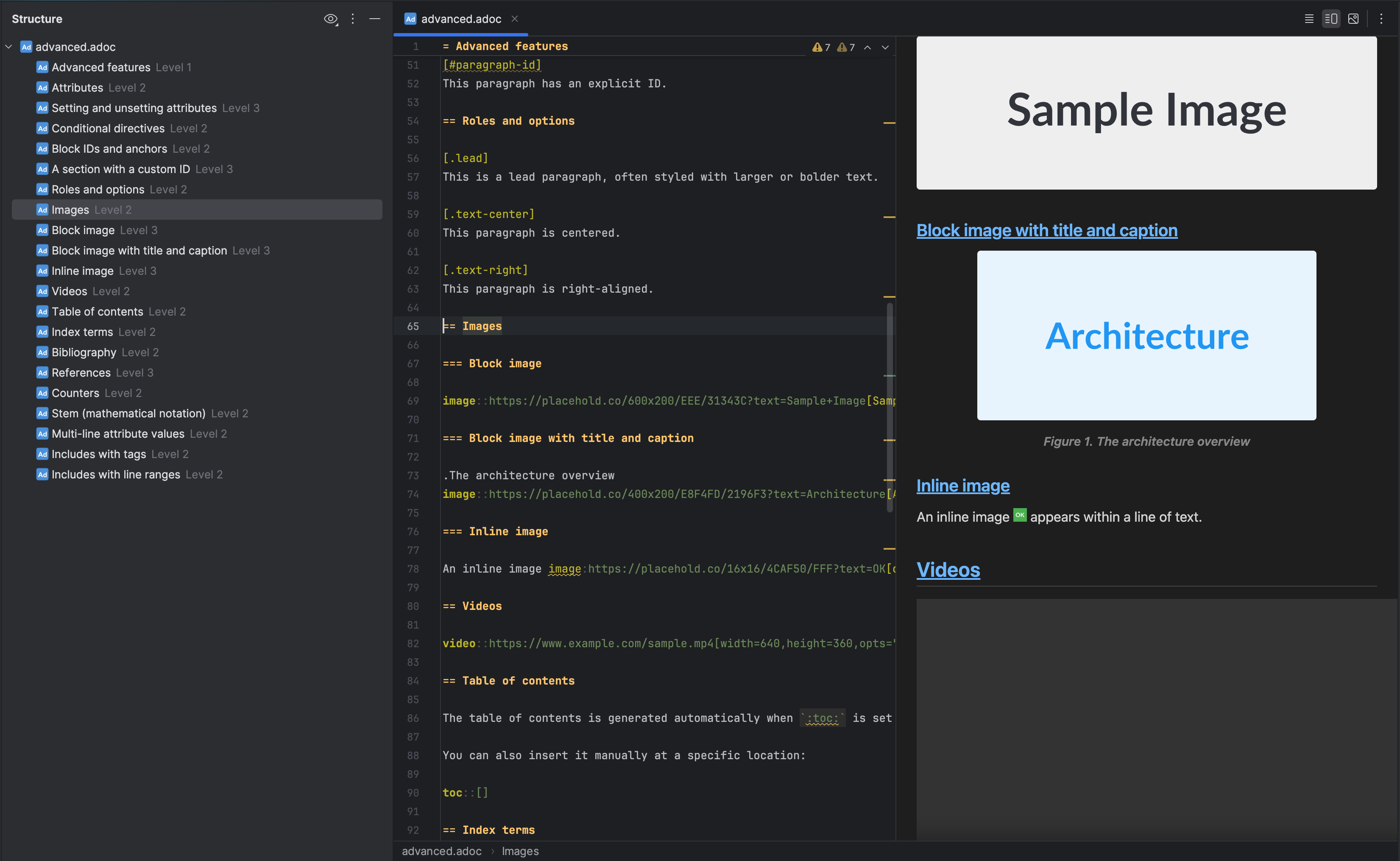
Image blocks, captions, and other AsciiDoc structures render beside their source. Select the image to view it at full size.
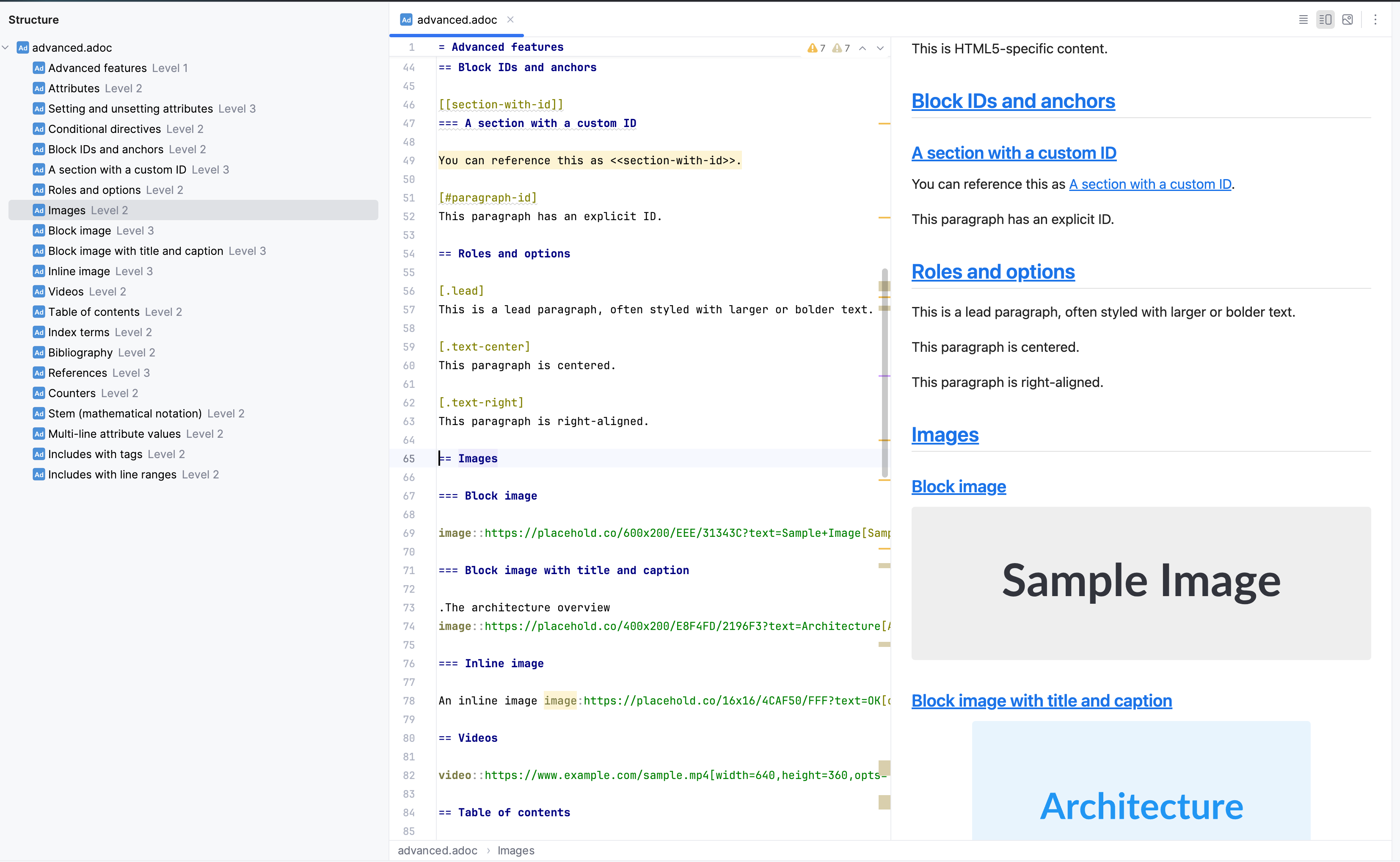
The same document structures render in a light preview theme. Select the image to view it at full size.
Manual for version 2026.2.19 · Reviewed