Tables, blocks, and inspections
Edit structured AsciiDoc and apply targeted quick fixes.
On this page
Start a table#
Use the table chooser for an initial grid, or write:
[cols="2,1",options="header"]
|===
|Service |Port

|API |8080
|Metrics |9090
|===
Place the caret in the table to add/remove rows and columns or format its source. Inspect cell boundaries after editing: escaped separators, multiline content, and AsciiDoc cells can require more than one visual line per cell.
Insert the right block#
The block chooser and formatting actions support common document structures. A source listing declares its language:
[source,python]
----
print("ready")
----
Language injection gives recognized code blocks the corresponding editor support when that language is available. It does not execute the code. Use the block’s language identifier instead of relying on color alone to communicate it.
Keep headings and lists structured#
Use section promotion/demotion when moving content through the hierarchy. Review child headings and anchors afterward. Smart Enter and list actions help preserve syntax, while Structure view shows the hierarchy the parser actually recognizes.
Inspect before applying a fix#
The inspections cover document structure, includes/xrefs, attributes, duplicate IDs, blocks/lists, and macro syntax. Invoke Alt+Enter at a finding to inspect a supported fix. A missing attribute can mean a typo or an attribute supplied by a build profile; defining it locally is not always the intended solution.
Use Find Usages before deleting a shared label or attribute. After a structural change, review both the source and preview and run the project’s actual documentation build to exercise build-specific attributes and extensions.
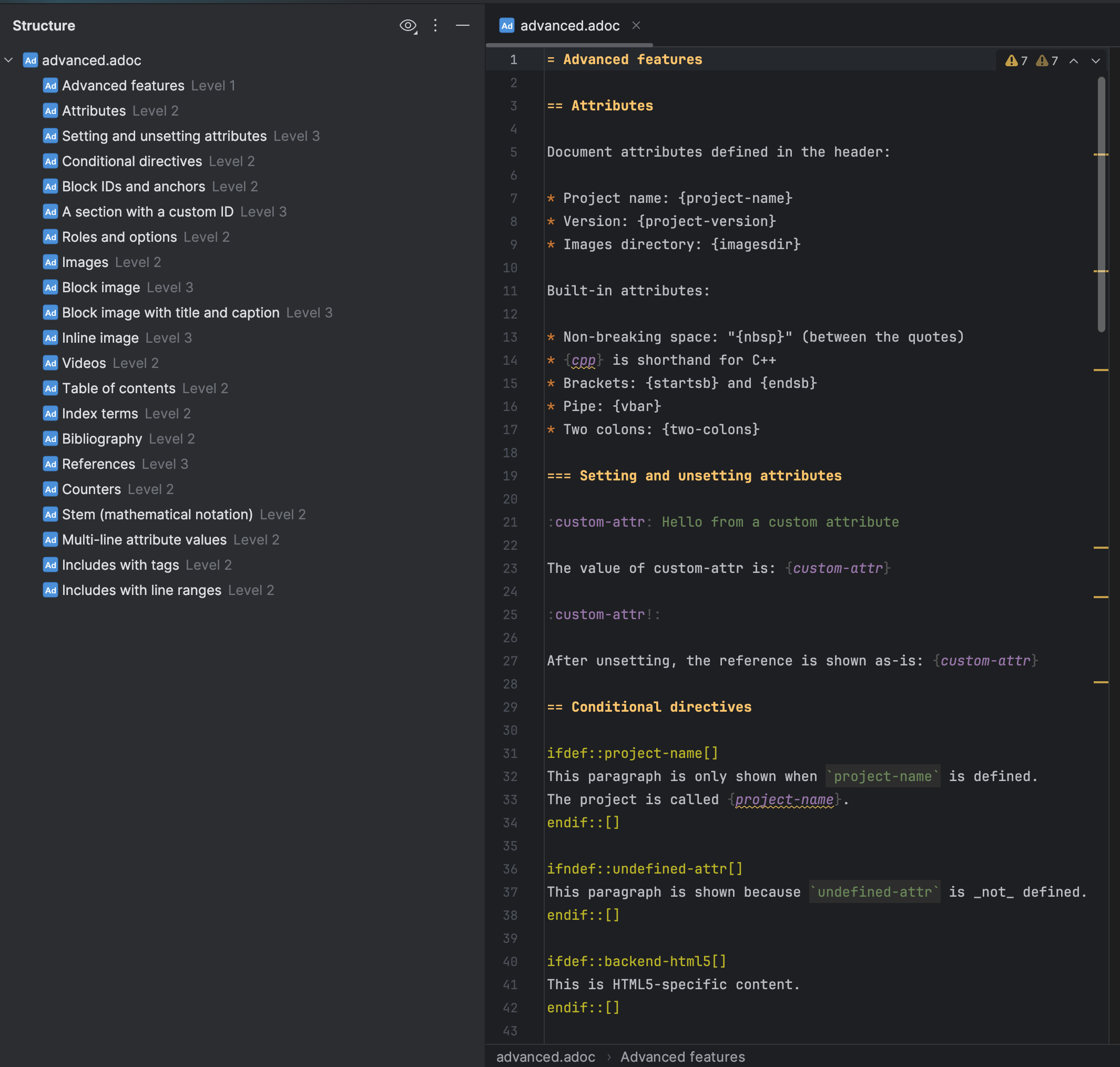
Structure view follows document headings while the editor preserves AsciiDoc blocks. Select the image to view it at full size.
Manual for version 2026.2.19 · Reviewed