Run configurations, tests, and package builds
Select the SDK and task before comparing results across environments.
On this page
Match the environment#
Open the project with its Pixi or uv configuration and select the intended SDK under Languages & Frameworks → Mojo. An explicit path wins over environment discovery. Compare mojo --version with the version shown in the IDE.
Create or inspect a Mojo run configuration for a source file. Confirm working directory, arguments, environment, and task. Run the simple main.mojo from the editor before introducing package/test tooling.
Run a test scope#
Use the file/test gutter actions or a test configuration for the project’s supported Mojo test structure. The test runner presents individual results, timings, and navigation. A failure before tests are listed often indicates SDK or compilation setup rather than an assertion.
Compare the same command in the selected project environment. Merely opening a terminal with a different activated environment can produce a misleading comparison.
Package output depends on the SDK#
The plugin selects mojo package for supported b1 SDKs and mojo precompile for b2 and newer releases. New package configurations use .mojoc; existing serialized package configurations/output paths are retained.
Inspect task and output options when switching SDK versions rather than changing just the extension by hand. Verify that consumers use the generated artifact format for that toolchain.
Diagnose and report#
Use Mojo Diagnostics for toolchain information and a redacted diagnostic bundle where needed. Inspect the bundle before sharing it. Include SDK identity and the exact task that failed so a source-analysis issue can be distinguished from a runtime installation problem.
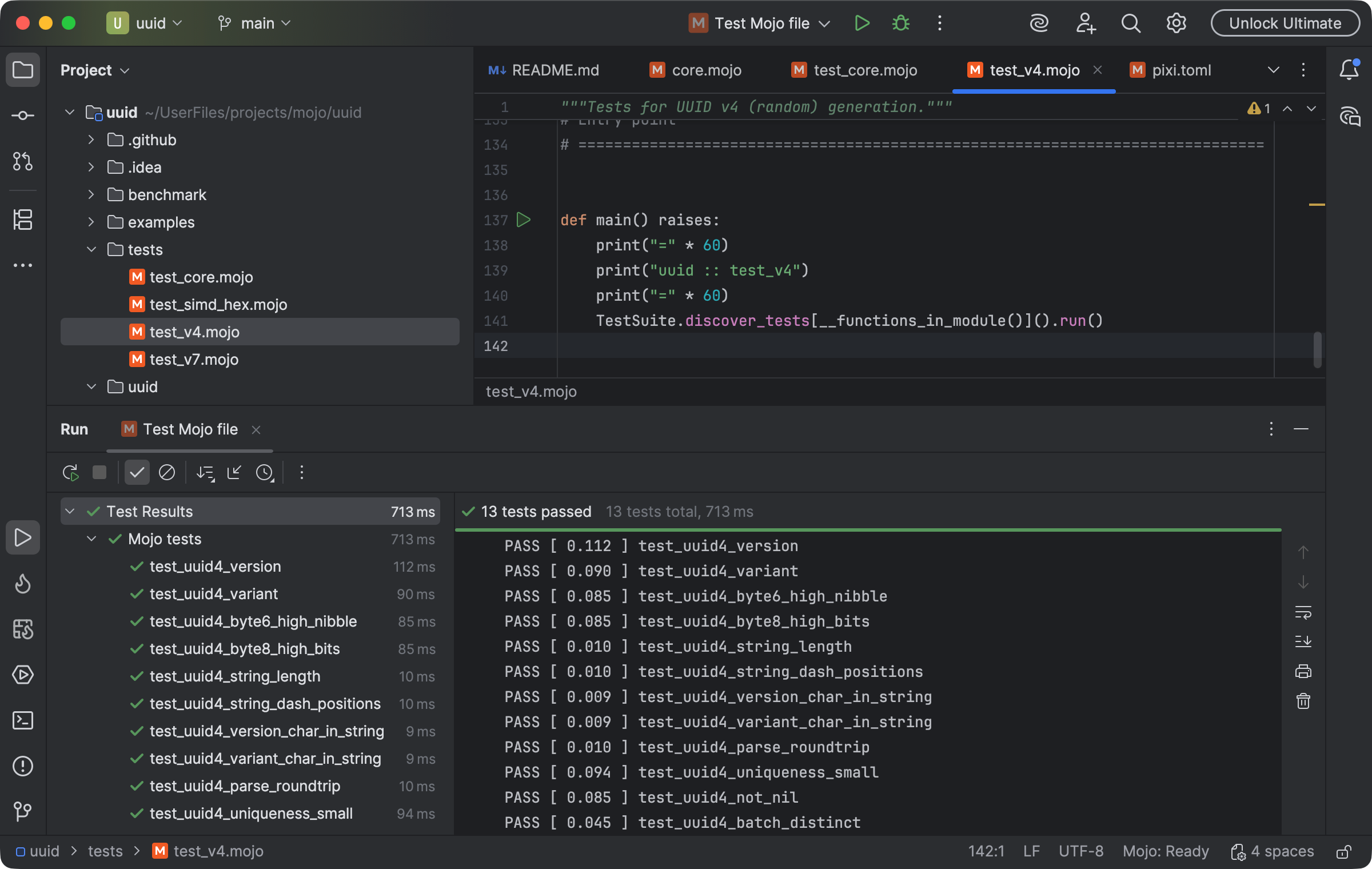
Mojo tests report individual results and timings in the IDE test runner. Select the image to view it at full size.
Manual for version 2026.1.12 · Reviewed