Package graph and Hex dependencies
Add a dependency to the intended package and navigate its sources.
On this page
Open the package workspace#
Open Gleam Packages and refresh the detected packages. Check package names, roots, target, dependency kinds, and status. In a monorepo, select the package you want to change before opening Add dependency.
Add a Hex dependency#
Use Add dependency, search Hex, review the selected package and version requirement, and apply the operation. Confirm the manifest and lock/dependency changes in version control. The normal declaration looks like:
[dependencies]
gleam_stdlib = ">= 0.44.0 and < 2.0.0"
Do not copy that range as a universal project policy: retain the range appropriate to your compiler and existing dependencies. A package found in Hex is not automatically compatible with every target.
Inspect source and dependency scope#
Navigate from an imported symbol into the resolved dependency source. This checks that discovery, dependency resolution, and indexing agree. Development dependencies should remain in their development section rather than become runtime dependencies accidentally.
Version 2026.2.4 supports Git dependencies located in repository subdirectories. Manifest completion understands section-specific keys and avoids proposing keys inside values/comments. Review the actual dependency source and subdirectory rather than assuming the dependency key is a local path.
Remove and revalidate#
Use Remove dependency for the selected package, inspect the proposed change, and run its normal check/build/tests. An import remaining in source can become unresolved after a valid dependency removal. The package graph helps find why a transitive dependency is present; removing a direct declaration does not guarantee that no other package requires it.
If the operation fails, inspect toolchain, network, manifest validity, and package selection before editing the lockfile manually.
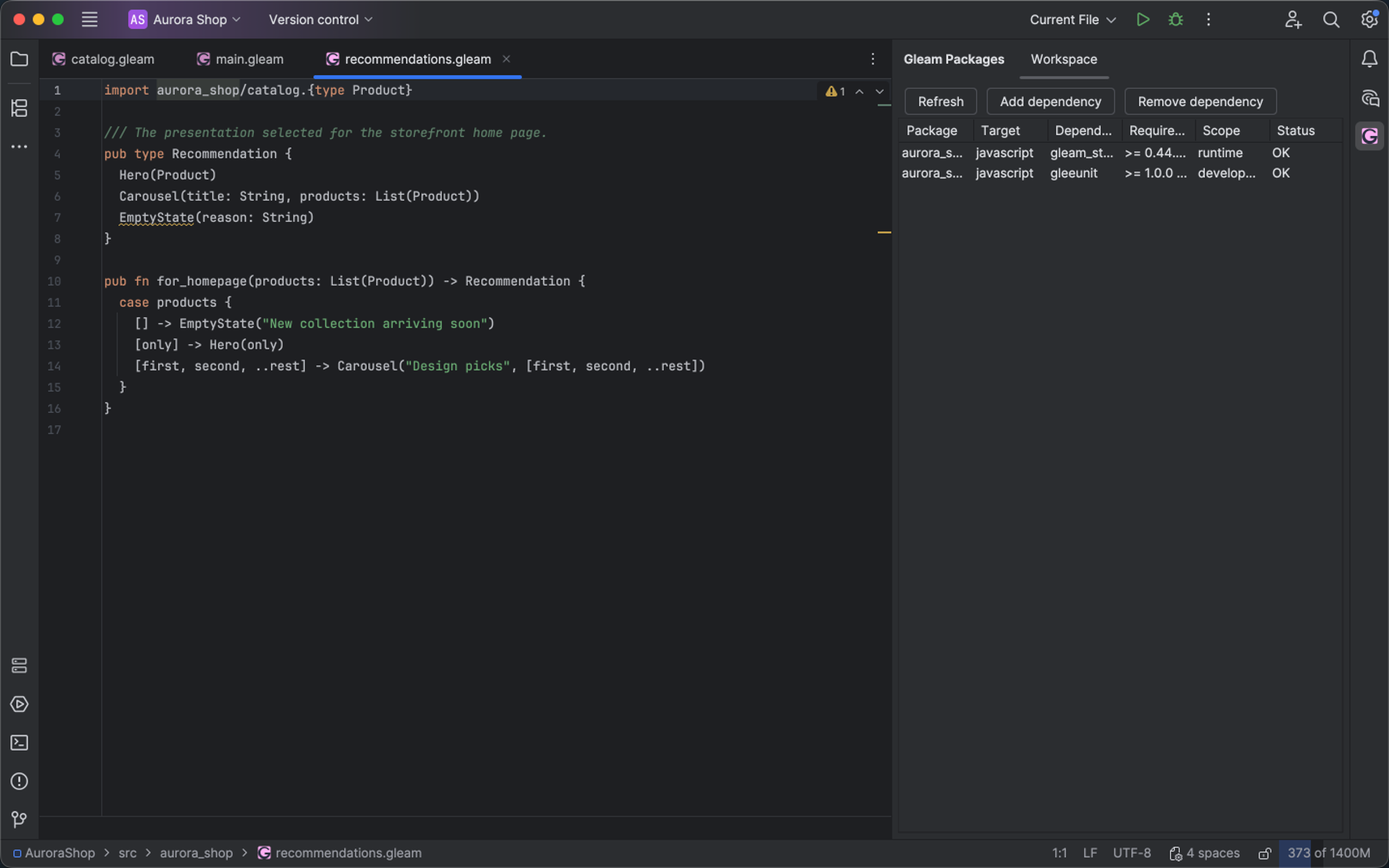
The Gleam Packages tool window shows dependencies and their source/status alongside application code. Select the image to view it at full size.
Manual for version 2026.2.4 · Reviewed