Toolchains and workspaces
Select compiler/runtime pairs and diagnose package detection.
On this page
Select a compiler for the project#
Open Settings → Languages & Frameworks → Gleam. Select a local executable or managed compiler, and check whether the project overrides the global toolchain. The documented plugin release offers Gleam 1.19.0 as its managed baseline; a screenshot may show an older managed version.
A compiler and target runtime are separate choices. BEAM projects need Erlang/OTP. JavaScript projects need the configured Node.js, Deno, or Bun runtime. Verify them independently before creating a run configuration:
gleam --version
erl -version
node --version
Only check the runtime your target uses. A configured JavaScript runtime also applies when gleam.toml chooses JavaScript as the default target.
Recognize a package#
Open the directory containing gleam.toml:
name = "order_demo"
version = "0.1.0"
target = "javascript"

[dependencies]
gleam_stdlib = ">= 0.44.0 and < 2.0.0"
Nested packages are discovered in workspaces. Confirm the package root before running a task or modifying dependencies; the first manifest in a tree is not necessarily the intended application.
Separate native and compiler-backed behavior#
Native syntax, structure, navigation, and focused refactorings remain useful when the official language server cannot start. Enable the official server for compiler-backed assistance and inspect its LSP4IJ console when startup fails. Restart it after changing toolchains.
An explicit executable setting takes precedence over discovery. If a terminal succeeds but the desktop IDE cannot find the compiler, configure its full path rather than repeatedly changing the project’s source. Managed downloads require network access initially; offline work needs tools already present.
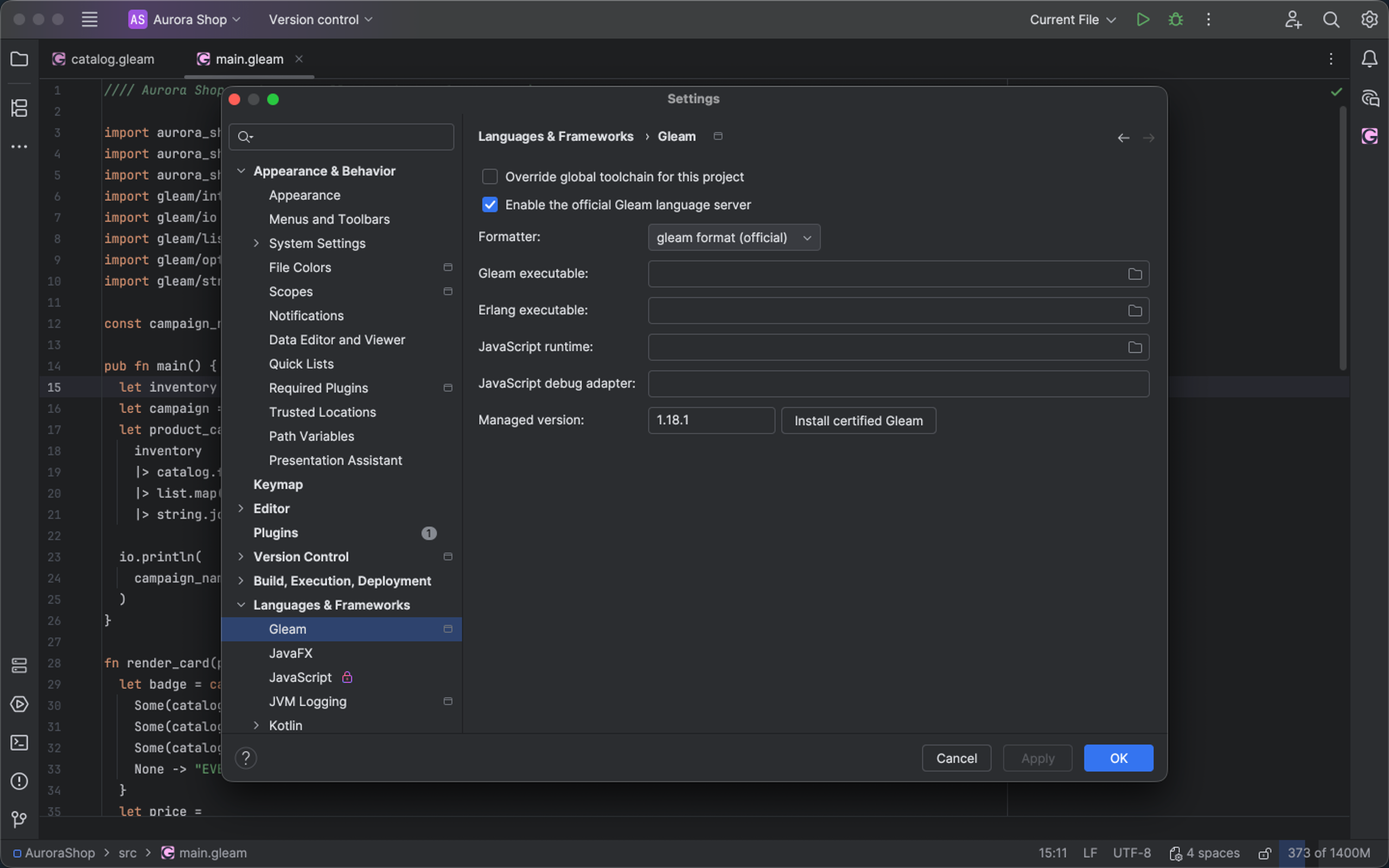
Gleam settings select compiler paths, runtime, formatter, and the official language server. Select the image to view it at full size.
Manual for version 2026.2.4 · Reviewed