Gallery insertion and linked selection
Understand the insertion target and make a visual edit you can review in source.
On this page
Preview a minimal component#
Create this file inside a configured Slint project:
export component MainWindow inherits Window {
  width: 360px;
  height: 220px;
  VerticalLayout {
    Text { text: "Order review"; }
    Rectangle { background: #237a72; height: 60px; }
  }
}
Choose Show Slint Preview. In the integrated Designer, select the rectangle and check that the source caret/highlight follows it. Move the source caret to the Text element and observe the visual selection.
Select the container before inserting#
Leave the toolbar Linked and select the intended container. The target label identifies component, element, and file. Search the Slint Gallery, inspect an entry’s minimum version and source preview, then drag it onto the Designer.
The selected element determines insertion. The exact canvas drop coordinate does not turn a structured layout into free-positioned pixels. For keyboard insertion, use Ctrl+Enter on an entry or Insert into Designer Selection (Alt+D).
Review the workspace edit#
The plugin merges required imports, creates a reusable declaration where necessary, and inserts its instance as an undoable edit. Inspect all changed source, then check compiler diagnostics. An existing type name is treated as user code rather than overwritten automatically.
Understand unlinked mode#
Unlinking lets visual and source selections move independently and disables Gallery drops. If an insertion is rejected, inspect linked state, selection, source writability, source language, and version compatibility before retrying.
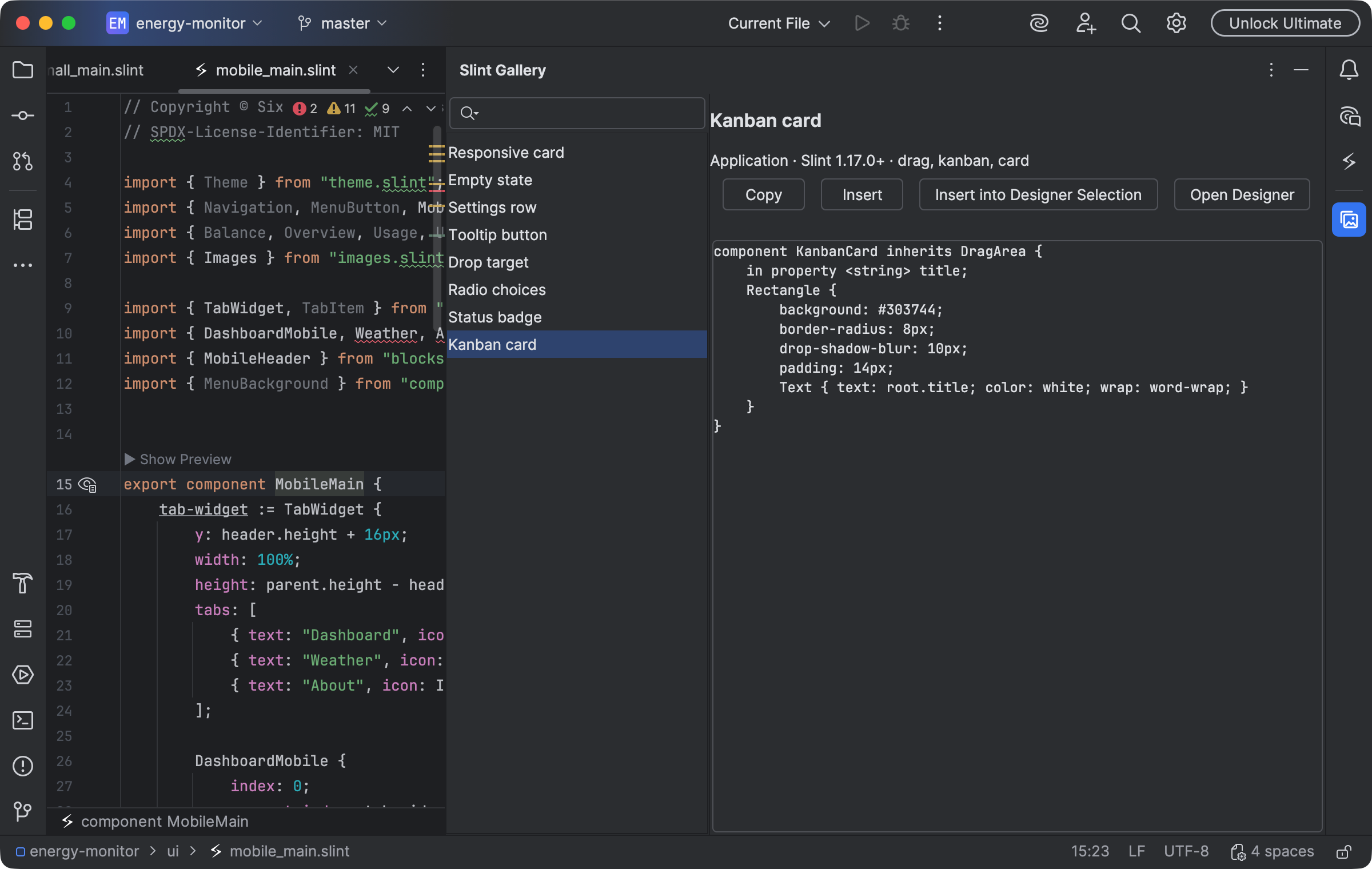
The Gallery presents a component source preview with insertion actions. Select the image to view it at full size.
Manual for version 2026.1.8 · Reviewed