Workers and Pages deployments
Inspect versions, deploy a Worker, and follow a Pages deployment.
Open a Worker dashboard#
Expand Workers and open the intended Worker. Inspect its overview, code, version history, and deployment information before changing it. Version history answers which Worker version was deployed; live logs answer what that runtime is doing now.
Use Deploy Worker for a deliberate deployment and review its target. A local edit is not automatically a remote deployment. After deploying, refresh the dashboard, confirm the resulting version/deployment, and exercise a known route.
Follow a request#
Open View Logs for the Worker, then make one identifiable request to the deployed route. Compare method, URL, timestamp, and any logged application identifier. A quiet log view can mean the route was never invoked, the wrong Worker is selected, or the session lacks access.
For a local project, a minimal Wrangler configuration might contain:
name = "docs-demo"
main = "src/index.ts"
compatibility_date = "2026-10-01"
The date and resource identifiers belong to the project. Use its installed Wrangler and supported runtime settings; copying a configuration does not create account resources.
Inspect a Pages project#
Open a Pages project to inspect overview and build configuration, then its deployment history. Distinguish production from preview deployments, and check branch/commit information before interpreting the result. The latest deployment entry may be a preview rather than the production site you are visiting.
A failed build needs the corresponding deployment’s build details. A successful build with incorrect application behavior needs its deployed URL, environment, and runtime context. Refresh after an external deployment so cached information is not mistaken for the latest status.
Move to diagnosis#
Use traces and observability for request timing. Keep the source revision, deployment/version identifier, and request timestamp together when investigating a regression.
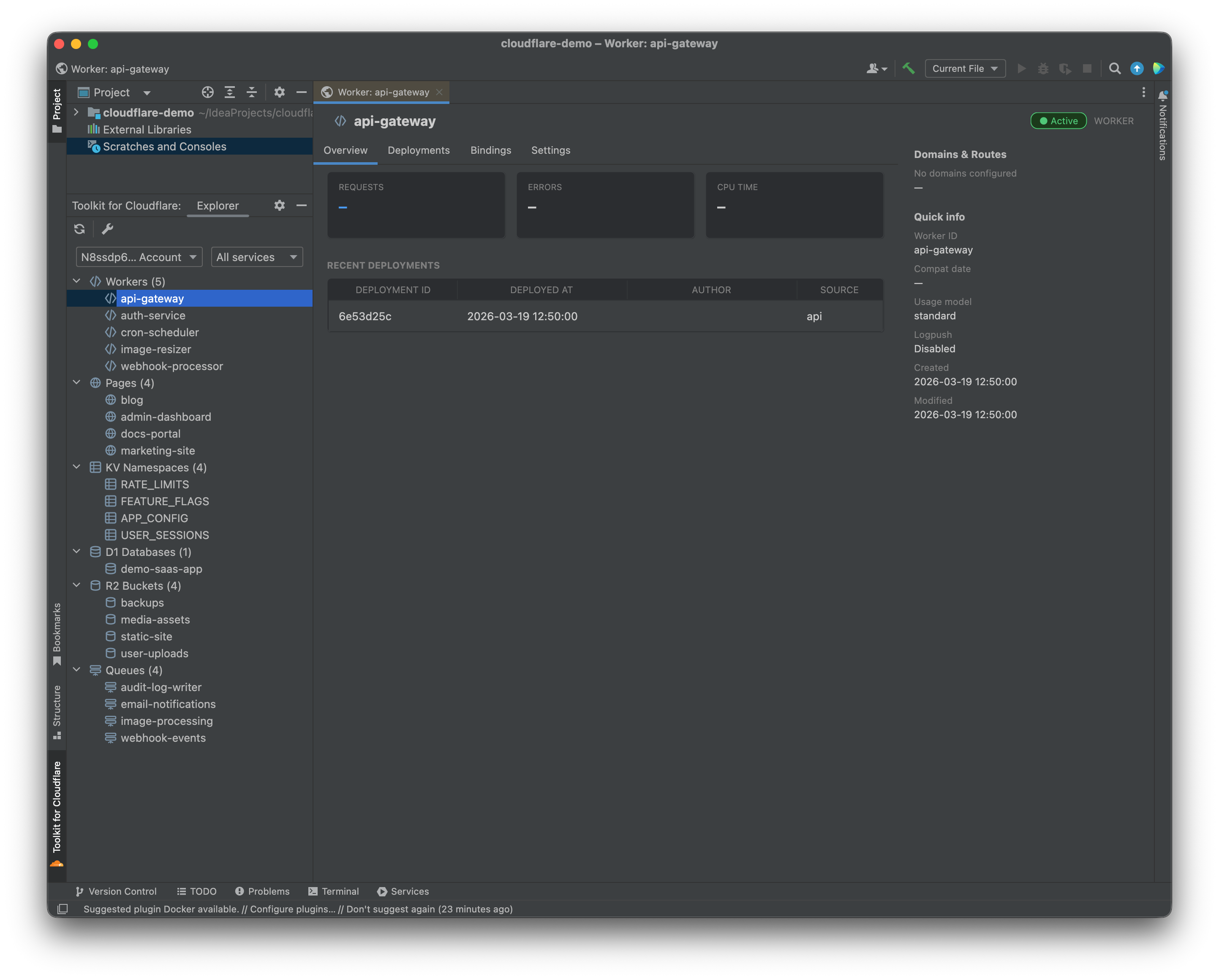
The Worker dashboard exposes deployment and version information. Select the image to view it at full size.
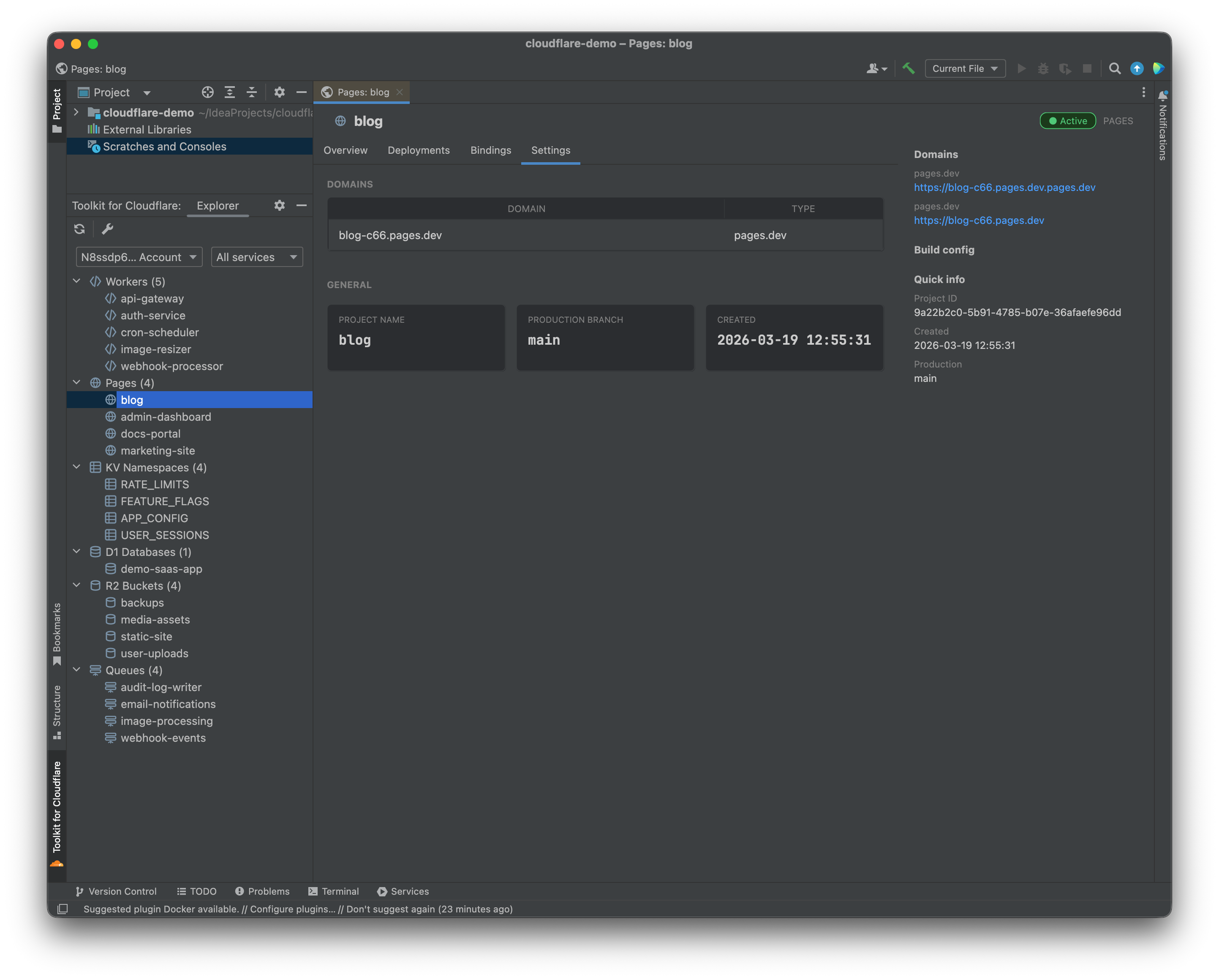
Pages deployment history separates individual builds and their environments. Select the image to view it at full size.
Manual for version 2026.2.7 · Reviewed