Annotate a screenshot step by step
Combine arrows, numbered steps, text, and privacy tools in one editable image.
On this page
Open and frame the image#
Open a supported image and switch to the ImageEdit Pro editor tab. Zoom so the area you are explaining is visible; pan with Space or the middle mouse button. Use Crop (C) if the screenshot contains unrelated margins before placing annotations.
The keyboard tool keys below follow the editor’s tool bindings. If a text field is active, finish editing text before expecting a letter to switch tools.
Add a clear sequence#
Choose Arrow (A) to connect an explanation to a control. Use Numbered Step (N) for a sequence, then Text (T) for short labels. Rectangle (R), ellipse (O), and line (L) help group related areas. Hold Shift for constrained shapes where supported.
Use the style panel for color, stroke width, fill, font, and text background. Reuse a small set of styles so arrows and step markers remain legible at the image’s final size.
Hide sensitive details#
Blur (B) and Pixelate (X) cover selected regions. Inspect the exported image at full size before sharing. Check the image itself as well as text annotations, background content, and any editable source you intend to distribute.
These are editing effects, so retain a private original if you need one and distribute the appropriate flattened output. Do not assume a visually obscured editable object is an irreversible removal of the original pixels.
Correct placement#
Use Select (V) to move/resize annotations and Shift for multiple selection. Undo/redo while refining. Freehand (P) and Highlighter (H) are useful for emphasis, while Picker (I) samples a color from the image.
Save and export#
Save the editable work, then use export regions and formats to create a flattened image for the manual. Reopen the editable file to confirm the annotations can still be adjusted before discarding working material.
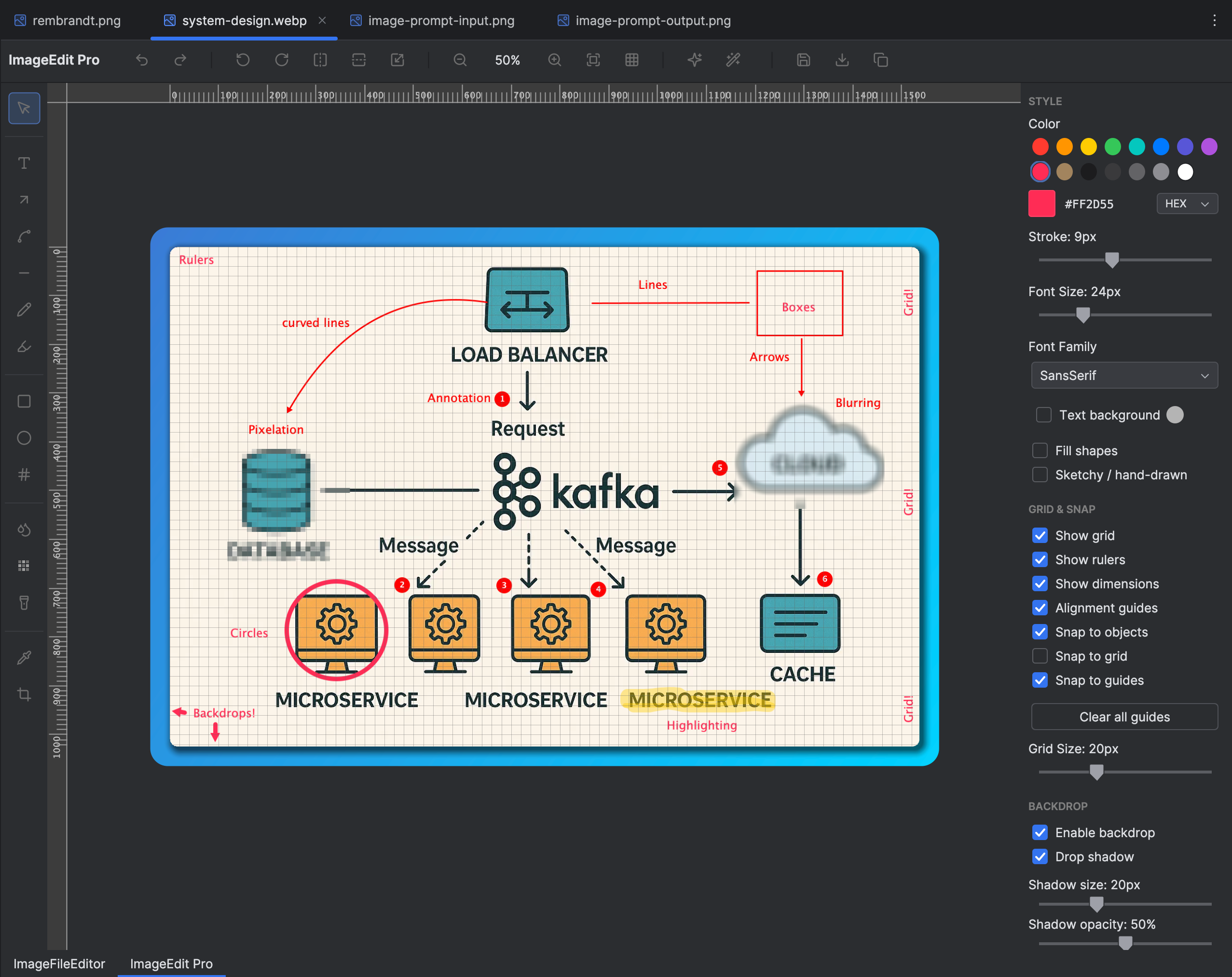
Annotations, shapes, and styling controls share an editable image workspace. Select the image to view it at full size.
Manual for version 2026.1.2 · Reviewed