Layers, alignment, and backdrops
Organize objects and create a consistent presentation frame.
On this page
Name meaningful layers#
Use the layer/object list to distinguish screenshot content from arrows, text, shapes, and other annotations. Rename an object with F2 or by double-clicking its name. Names such as “Step 2 arrow” and “API label” make later changes easier than a list of unnamed shapes.
Reorder objects to correct overlaps. Group related objects, and use visibility/locking when refining one part of the image. A locked object is protected from editing; it is not automatically omitted from export.
Align several objects#
Select multiple objects with Shift and use alignment/distribution controls. Check which selected objects define the operation’s bounds. Grid, guides, snapping, rulers, and dimensions can help place labels consistently; toggle them while arranging the composition rather than drawing guide lines into the image.
After alignment, zoom out to the final display size. Mathematically aligned labels can still collide with image content or point at the wrong control.
Add a backdrop#
Enable the backdrop to place the image inside a presentation frame. Adjust padding, corner radius, background/gradient, and shadow settings. Padding creates breathing room around the source; the shadow makes the frame distinct from a page background.
Inspect light and dark page contexts when choosing the backdrop color. Large padding/shadows increase output dimensions and may reduce the screenshot’s readable size when embedded in a narrow document.
Separate content from presentation#
Keep arrows and text readable without relying on a decorative frame. A backdrop should support the screenshot, while the original control labels remain the source of truth for the instruction.
Use frame/selection/all export deliberately so the exported result includes the intended backdrop and annotation bounds. A selection export can have different dimensions from the entire composition.
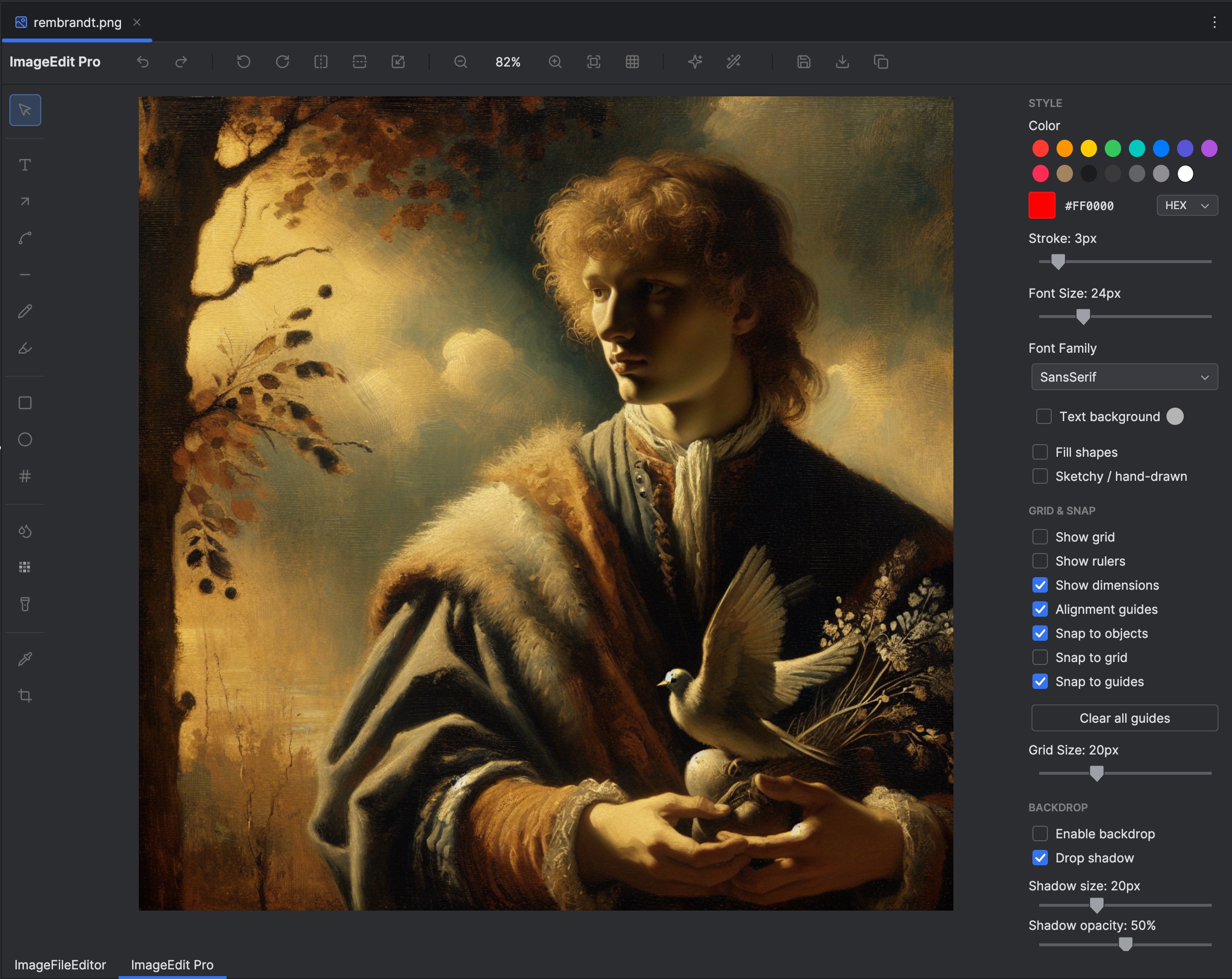
The style panel contains annotation, snapping, guide, and backdrop controls. Select the image to view it at full size.
Manual for version 2026.1.2 · Reviewed