Export regions and formats
Keep editable work and create a flattened PNG, JPEG, WebP, or SVG wrapper.
Preserve editable work#
Use Save for the editable document so annotations, shapes, and layout remain adjustable. When creating a flattened output, use a separate destination and review any flatten/overwrite confirmation. A shared image and an editable source serve different purposes.
Reopen the saved editable work to check that objects remain selectable. Retain the original when you expect to revise the screenshot after the application UI changes.
Select the export region#
The export workflow supports the frame, selection, or all content. Choose the region that matches your intended artifact:
- Frame keeps the defined presentation area.
- Selection focuses on the selected content.
- All includes the composition’s relevant bounds.
Inspect the preview/dimensions before exporting. Off-canvas annotations or a large backdrop can change the all-content result. Clipboard output is convenient for a quick paste; file export gives a stable artifact for a repository.
Choose a format#
PNG suits crisp UI screenshots and transparency. JPEG can reduce photographic-image size but introduces lossy artifacts and has no alpha channel. WebP offers another web-oriented raster output, with behavior depending on export settings.
The SVG output is a flattened raster image inside an SVG wrapper. It does not turn arrows/text into independently editable vector elements or recover vector paths from a screenshot. Keep the editable source for future object-level changes.
Verify what you will share#
Open the exported file outside the editor. Check dimensions, transparency/background, text legibility, crop boundaries, and all obscured areas. An export dialog closing does not prove you chose the intended destination or region.
For website documentation, use a stable filename and descriptive alternative text, and keep the full-resolution image available when a narrow article cannot display every UI label clearly.
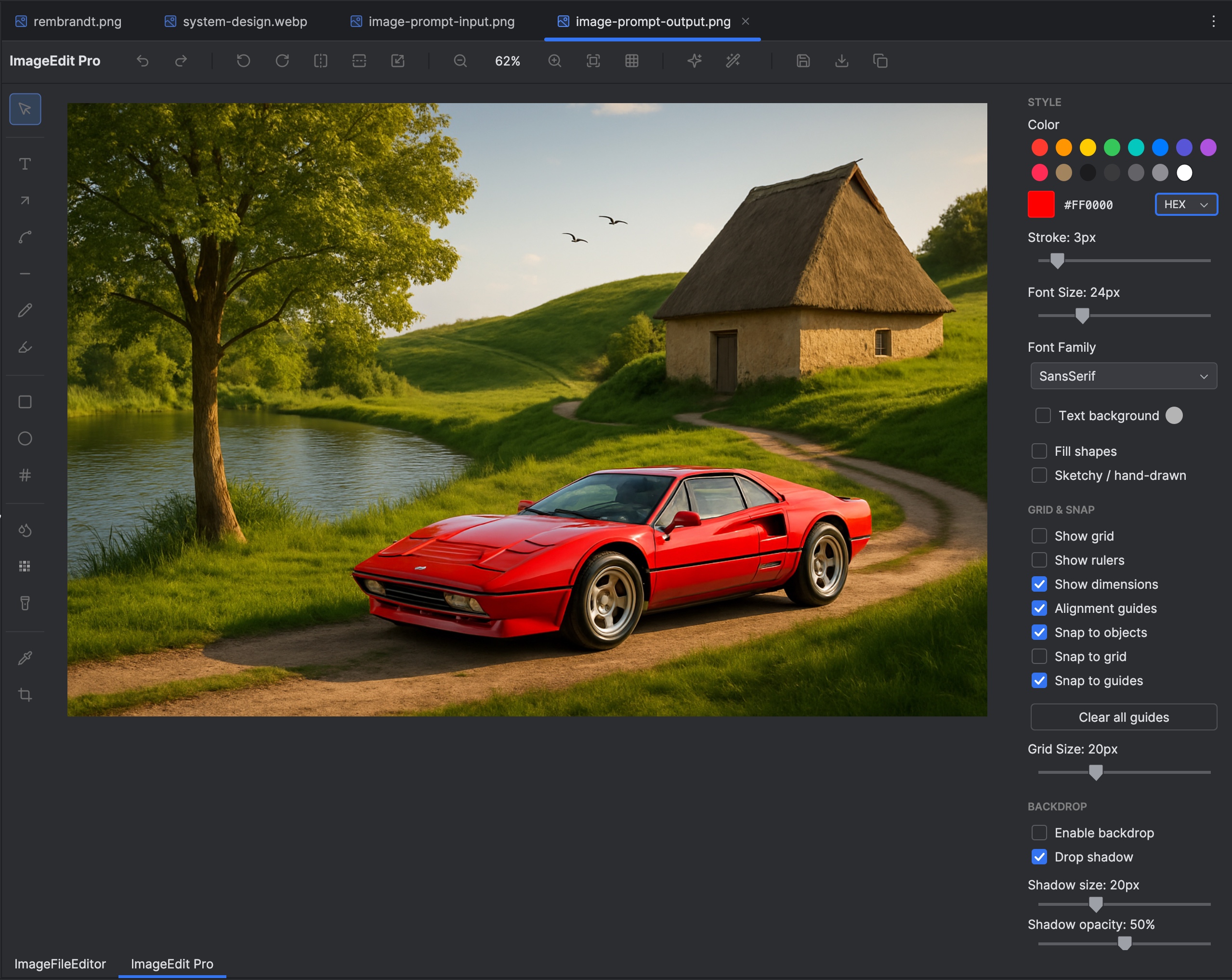
The image editor retains a working composition before flattening it for distribution. Select the image to view it at full size.
Manual for version 2026.1.2 · Reviewed