Preview and source navigation
Follow a multi-page document while preserving its compilation context.
Choose a layout#
Open a .typ file and use editor, split, or preview-oriented layout as appropriate. Enable preview and scroll synchronization under Settings → Tools → Typst. A long document is easier to edit when the preview follows the section you are working on.
Check the chosen main file first when the preview appears unrelated to the active editor. A pinned entry point intentionally keeps rendering that document while you edit an included chapter.
Follow source and output#
Use supported source/preview navigation to move between the rendered region and the document source. With multiple included files, confirm the destination file as well as the line. Generated content and layout elements do not always correspond to a single source token.
Use Structure and symbol navigation to move among headings, functions, and document definitions. For a reference such as @results, inspect the actual label declaration and its rendered target rather than treating it as an arbitrary text link.
= Results <results>

See @results for the measurements.
Read errors in context#
A preview error can come from syntax, a missing include, an unavailable font/package, or a failing expression. Navigate to the diagnostic, inspect its file, and rebuild the main document after the fix. Merely closing an error panel does not clear the underlying compilation error.
For an unavailable language server, inspect the configured Tinymist path and process diagnostics. For an export-only error, check the standalone Typst compiler path separately. These tools participate in related but distinct workflows.
Compare the final artifact#
Use an explicit export to inspect page count, links, fonts, and tables in the output format you will distribute. The editor preview is useful while authoring; a final PDF or HTML artifact is the thing your reader receives.
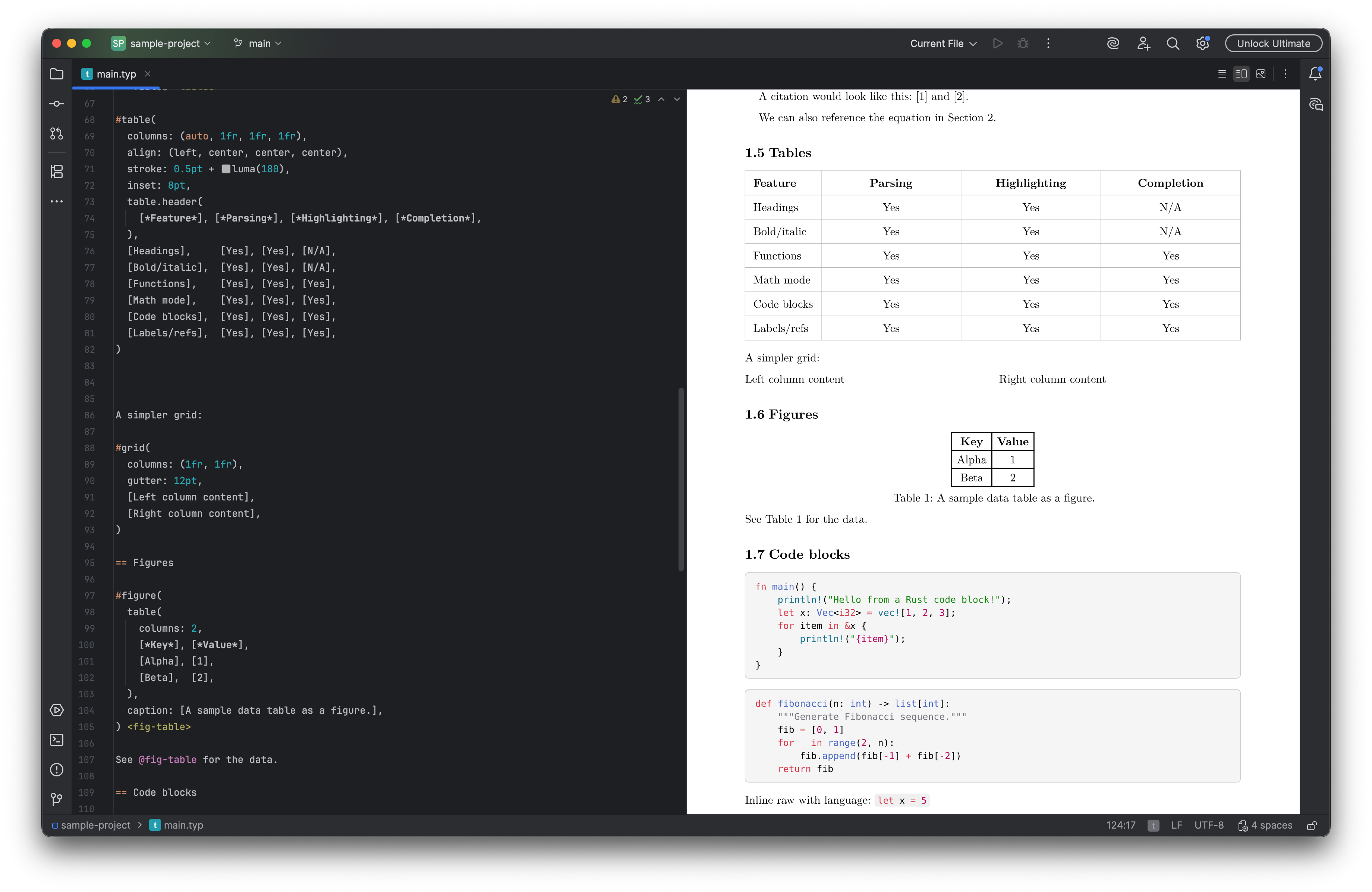
Tables, figures, and code blocks share a rendered document with source navigation. Select the image to view it at full size.
Manual for version 2026.2.11 · Reviewed