Canvas boards and raw JSON
Inspect visual boards while keeping their source portable.
Open the board#
Open a .canvas file in a configured vault. The visual Canvas tab renders text/file/image cards, groups, labels, and side-aware connectors. Zoom and pan to inspect a large board; the ordinary text editor remains available for the JSON source.
A minimal text-only board is:
{
  "nodes": [
    {"id":"note-a","type":"text","text":"Review the schema","x":0,"y":0,"width":260,"height":140},
    {"id":"note-b","type":"text","text":"Publish the guide","x":360,"y":0,"width":260,"height":140}
  ],
  "edges": [
    {"id":"next","fromNode":"note-a","fromSide":"right","toNode":"note-b","toSide":"left","label":"then"}
  ]
}
Save it as review.canvas and open the visual tab. Expect two cards connected from right to left with the label then.
Edit in the appropriate view#
The visual Canvas renderer is read-only in this release. Change coordinates, text, node IDs, or edges in the JSON editor or Obsidian itself, then inspect the rendered result. Dragging the viewport pans; it does not promise an editable card layout.
File cards resolve notes/assets in the vault. A missing file can indicate a wrong root or a moved asset. Check the source path before replacing a card with a duplicate note.
Keep the source with the vault#
Commit or back up .canvas and referenced assets together. The rendered board is a view of those files, not a separate database. Use stable node IDs while editing edges so connectors continue to point at existing cards.
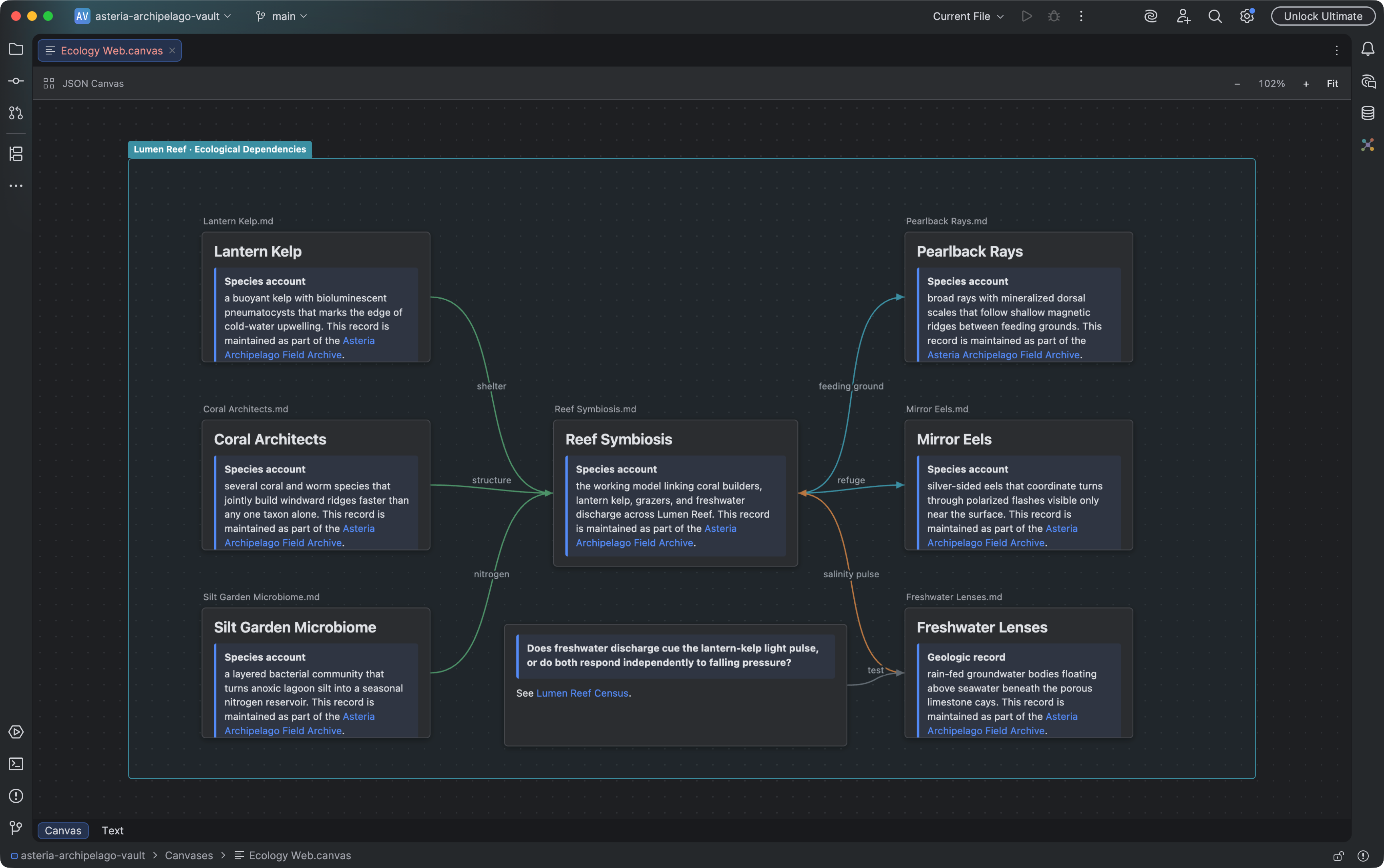
A read-only Canvas board renders linked note cards, groups, and connectors. Select the image to view it at full size.
Manual for version 2026.2.8 · Reviewed