Markdown flavors, tables, and code fences
Choose parsing rules and edit structured Markdown without damaging delimiters.
On this page
Pick the grammar your destination uses#
Under Settings → Tools → Markdown Pro, choose GFM, Markdown Extra, CommonMark, Standard Markdown, or the vault’s Obsidian behavior. The documentation framework profile does not automatically make every Markdown extension valid in that framework.
GFM table syntax includes alignment and escaped pipes:
| Feature | Status | Example |
| :--- | :---: | ---: |
| Table tools | Ready | a \| b |
Use the in-editor table toolbar/context menu to add, delete, move, or format rows and columns. Confirm that alignment markers and escaped pipes survive. CommonMark and Standard Markdown leave pipe tables as text; changing flavor can therefore change the result without changing source.
Keep code fences unambiguous#
Use a language tag for rendered highlighting and injected language support:
```typescript
const title: string = 'Guide';
```
When documenting a triple-backtick fence, surround it with a longer fence as above. A missing closing fence can make the rest of the article appear as code and suppress normal authoring actions.
Lists and tasks#
Toggle task checkboxes in source or preview as supported, and use Enter to continue lists. Ordered lists renumber after edits, including nested lists. Review nesting indentation when moving an item; a new number at the wrong level is still a structural mistake.
Preview and copy#
Choose a scroll-sync direction that suits writing or reviewing. Adjust preview size while it has focus; reset with Cmd/Ctrl 0. Copy rendered content as rich text, HTML, RTF, plain text, or browser-default content according to the destination. A copied fragment and the source Markdown are different outputs, so retain the .md file as the editable original.
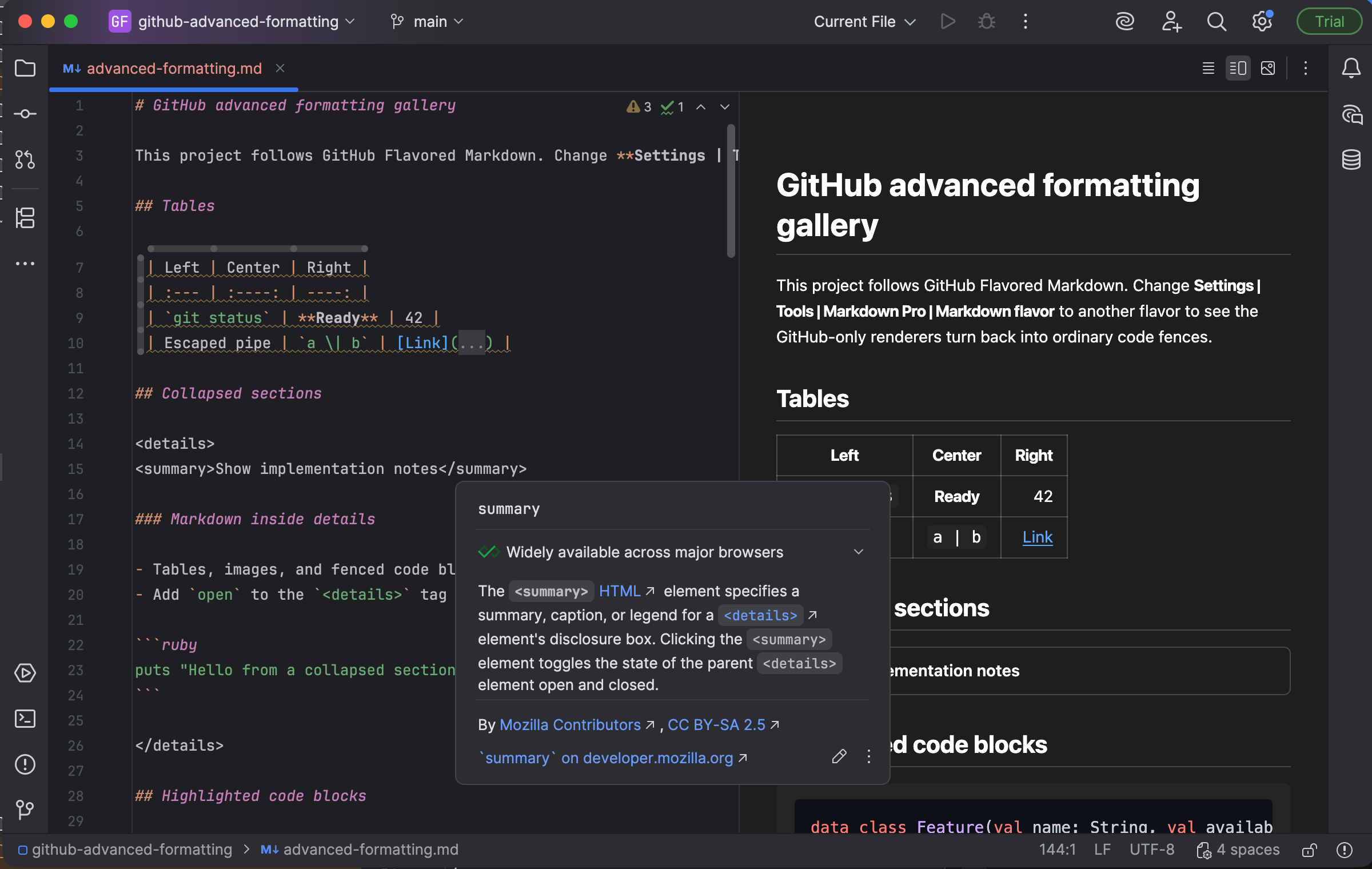
GFM tables and collapsible content render alongside the source. Select the image to view it at full size.
Manual for version 2026.2.8 · Reviewed