Mermaid and document conversion
Render diagrams and review format changes as separate workflows.
Render a Mermaid fence#
Create a Markdown document with:
# Review workflow

```mermaid
flowchart LR
  Schema --> Diagram
  Diagram --> Review
  Review --> Export
```
Open the generated Markdown preview. Expect a four-stage flowchart, not the literal diagram source. Check the Markdown flavor and preview context if it remains plain code. A framework-owned MDX or presentation page may use the framework’s diagram setup rather than the generated-preview renderer.
Keep diagram syntax small while diagnosing errors. The plugin can preserve the editable fence when rendering fails; correcting the source is preferable to pasting a static image that loses the original model.
Configure Morph#
Open Markdown Pro → Document Conversion. Use a managed installation or a local Morph executable and confirm the displayed version/source. Available conversion targets depend on the converter; the documented plugin supports common formats including AsciiDoc, RST, Typst, LaTeX, Djot, Org mode, Textile, HTML, and DocBook.
Review a conversion#
Choose Convert Document, select the target, and inspect the diff before replacing an existing destination. Test a short source containing a heading, a link, a table, and a code fence before converting a whole documentation tree.
A Mermaid fence, MDX component, Obsidian transclusion, or custom front matter may not have an equivalent in the target syntax. Inspect those constructs explicitly and render the destination format. Retain the original source until the converted documents have passed their own build.
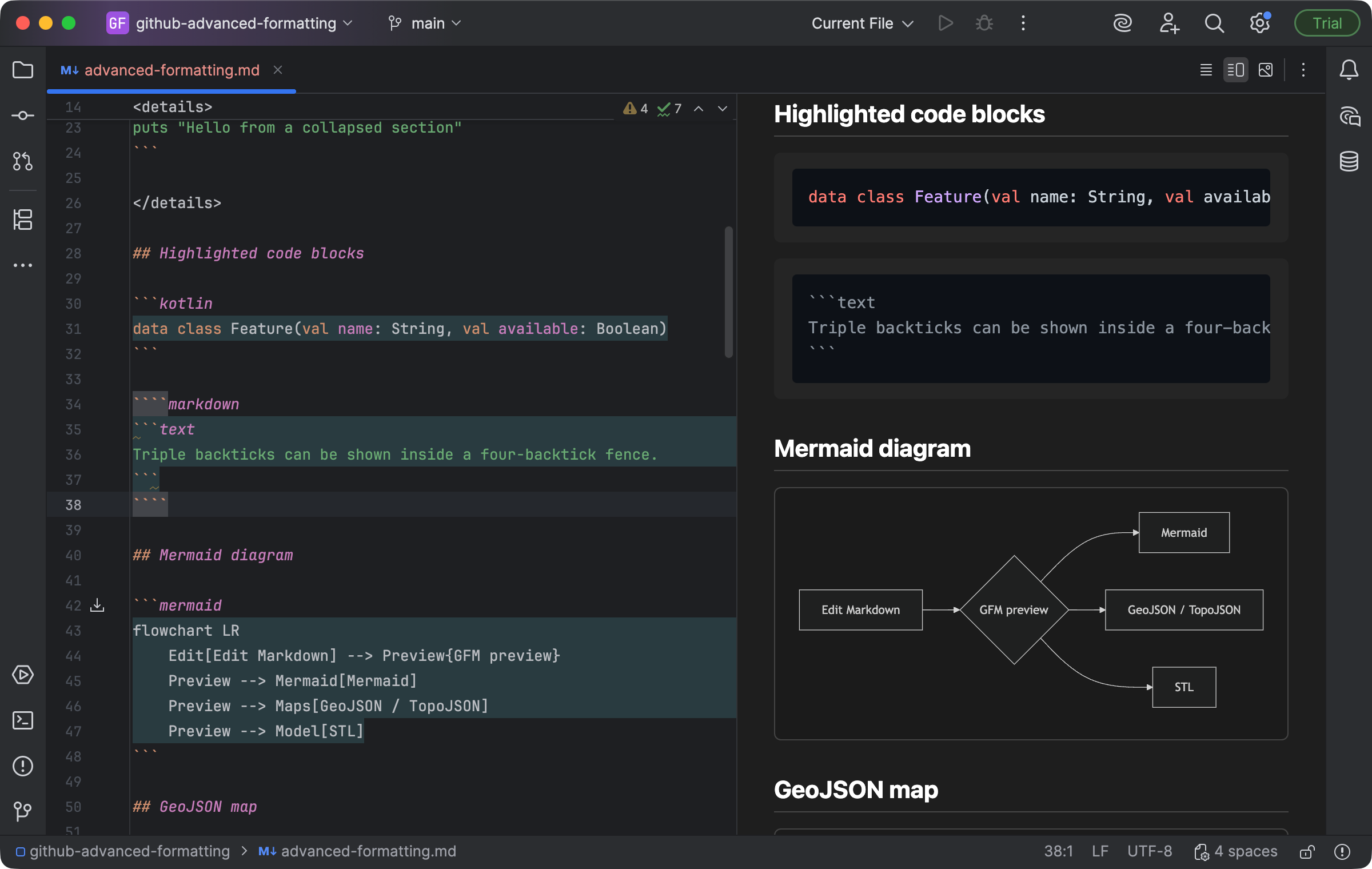
A Mermaid flowchart and highlighted code render in the Markdown preview. Select the image to view it at full size.
Manual for version 2026.2.8 · Reviewed